How to Configure and Use Mail App on macOS

 05 August, 2020

Facebook
Twitter
LinkedIn
Email
Pinterest
WhatsApp
configure mail macos

Select email Provider Like, Yahoo, Outlook or Google

We do get a lot of people calling us to discuss how to use or configure Mail application comes with macOS. If you are running a business or would like to have your private email like BT, Virgin, TalkTalk or etc to be secured and safe, using macOS application called “Mail” would be the best software to receive and send email to your work colleague, family or friends. macOS Mail comes in all Mac operating system like Big SurCatalina, High Sierra, Mojave and etc.

Today we are going to show you how easy it is to use and configure email on “Mail” by following simple steps. The main purpose of setting up an email that you don’t need to open every time internet browser or to use google chrome, firefox or safari to check your email. All you have to do just click on top left “Magnifier” glass type “Mail” and the application will open up with all your sent and receive emails stored at one place. Sounds interesting? So let’s discuss how can it be done.

First, Click on Launchpad and look for Mail (probably third icon at the top from left). Click on it and screen below will appear. it gives you the option to setup your email based on different email providers like BT email, Virgin media email, TalkTalk email or etc. If you have Exchange (outlook and hotmail), Google, Yahoo or AOL account, you won’t be needed any technical information. All you need to do just select your email provider from the list, enter username and password and it will fetch all your emails including inbox, drafts and sent from cloud.

It’s a bit tricky to configure corporate / business email on Mac Mail software. So, we will be discussing mainly how to configure your business email like @domain.com. In this case we are going to configure Geeks Callout London business email “hello@geekscallout.co.uk”.

After choosing “Other Mail Account…” you need to enter details to add a mail account. First you need to enter the name so people should see when you send them an email. This could be either your name or business name etc. enter your full email address and password. You can either request your IT team for your business email password or you may have created it by yourself by going into cPanel.

macOS Mail application allows to configure either POP3 or IMAP. The difference between two is mainly the encryption, security and personal preference. Having an IMAP will keep the copy of each email onto cloud as well as stored in your MacBook or iMac. POP3 option will allow you to download all emails from online server and only keep the copy in your PC disk space. Again, some hosting companies do offer unlimited email storage on cloud, having an IMAP is the best option but if its has limited email storage capacity, its best to choose POP3 setting. 

configure pop3 or imap

This step would require key information regarding your business email. To complete and go to the next step we need “Incoming Mail Server” and “Outgoing Mail Server” without this information macOS Mail application won’t work. Username should be your full email address, sometimes people do make a mistake by just typing the name or the company name. Incoming and outgoing mail server can be requested from office IT team or speak to your hosting company about it. 

This information is very common and can be found on hosting company online website. Most of the email providers have standard incoming and outgoing server like “mail.domainname.co.uk“. You may try this first and if it doesn’t work. Speak to your IT department or the hosting company to get the incoming and outgoing server details.

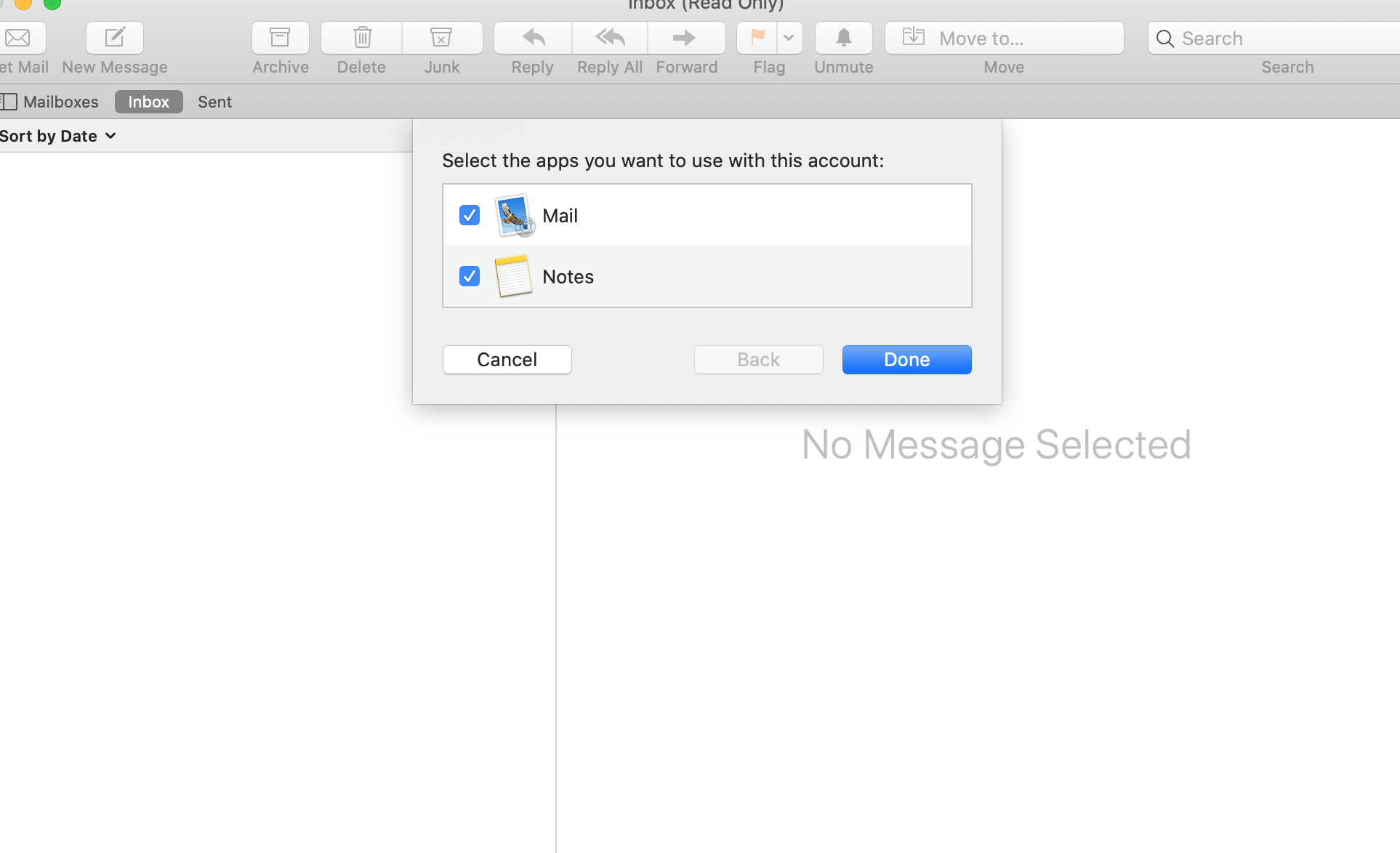
Once you have the full details of your account and entered it correctly, click on “Sign in“. After verifying the account, screen below will appear up. If you see the message below means, your account is ready to receive emails. Go ahead click on “Done“.

email configured

You will probably receive a test email from your email provider to make sure it’s working or if the account has already been in use, it will start downloading all your previous and recent emails in inbox. If the same account has been connected to your mobile phone or office computer on IMAP, it will also download all sent into sent folder. So, now we know one thing for sure that all emails are coming in. But sometime, while sending an email, macOS Mail application does popup a message asking for outgoing encryption or port number (probably 1 out of 10 computers). If you see any of that message, just make sure the outgoing server is correct. Either enter the port number 465 or the same email address and password. By doing this, hopefully that box will disappear.

macOS email

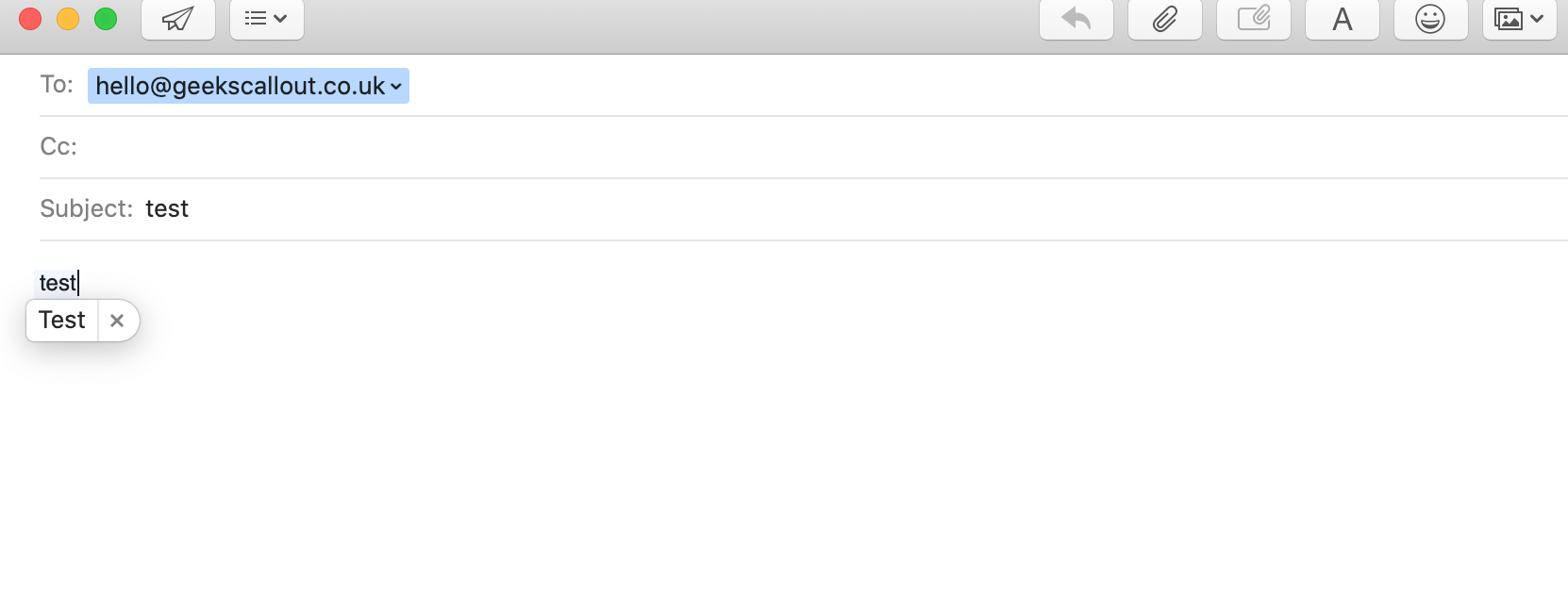
Since the email has been configured and messages are downloading. Meanwhile, lets run a sent test to make sure if email do sent out without any glitch. All you have to do click on “New Message” and screen below will appear up. Type your own email address where it says “To” and write anything next to “Subject“, in this case we have mentioned test. You can write anything in subject as well as message body. Once you have done that, click on that top little “aeroplane” sign above “To” and you will hear the flying sound. 

Hurray, have a look in the yellow circle. The email we sent just came in, it means all working fine. Geeks Callout London alwas recommend to run a sent test once the email configured on any third part email client software including Microsoft Outlook, firefox thunderbird and etc. This step is important to make sure email is going out and system does not required any more input from user to make it work…. Smooth and easy right?

Geeks Callout London always happy to help people to achieve basics without the help of an IT expert. But, in some cases things can be very technical and we do not recommend you to do it on your own as problem can get more worse. Having a PC expert would be less time consuming and quick fix the issue. We have seen many cases where people tried it by themself and made it more worse. This may frustrate and cost you more at the end. If you find it difficult, you can use our remote support service at very reasonable cost. Please call us at 0203 290 5190 or email us info@geekscallout.co.uk for free advice or consultation. 

Call Now Button