From Processor Failure to RAM Slot Repair: How We Fixed a Dell XPS 9570 in Islington
From Processor Failure to RAM Slot Repair: How We Fixed a Dell XPS 9570 in Islington 16 Dec, 2025 Facebook Twitter Youtube Instagram At Geeks
@geekscallout
Updated: 21 Nov, 2025
Many tools are offering CPU and GPU benchmarking in Windows 10 or Windows 11. These software results are highly reliable and can effectively push your system’s hardware to its limits. If your PC is overclocked, we recommend using software like OCCT to check if the temperature is exceeding the desired limit and if frame rates are dropping or remaining stable.
FurMark may look similar to other tools, but the reality is that this software is more of a stress test than a benchmarking tool. The difference between other software and FurMark is will push your system hardware like CPU and GPU, harder to accelerate more power. It’s a good way of testing to see if your graphics card (GPU) and CPU is stable while playing powerful games.
If you doubt the graphics card is not performing to its limits, FurMark is the best software to find a quick answer. It will push your graphics card limits and also be a good way of testing your GPU’s heat. This software tests GPU limits and stability, and will give you a clear idea if you may need to upgrade the PC cooling system.
1: First, download and install FurMark
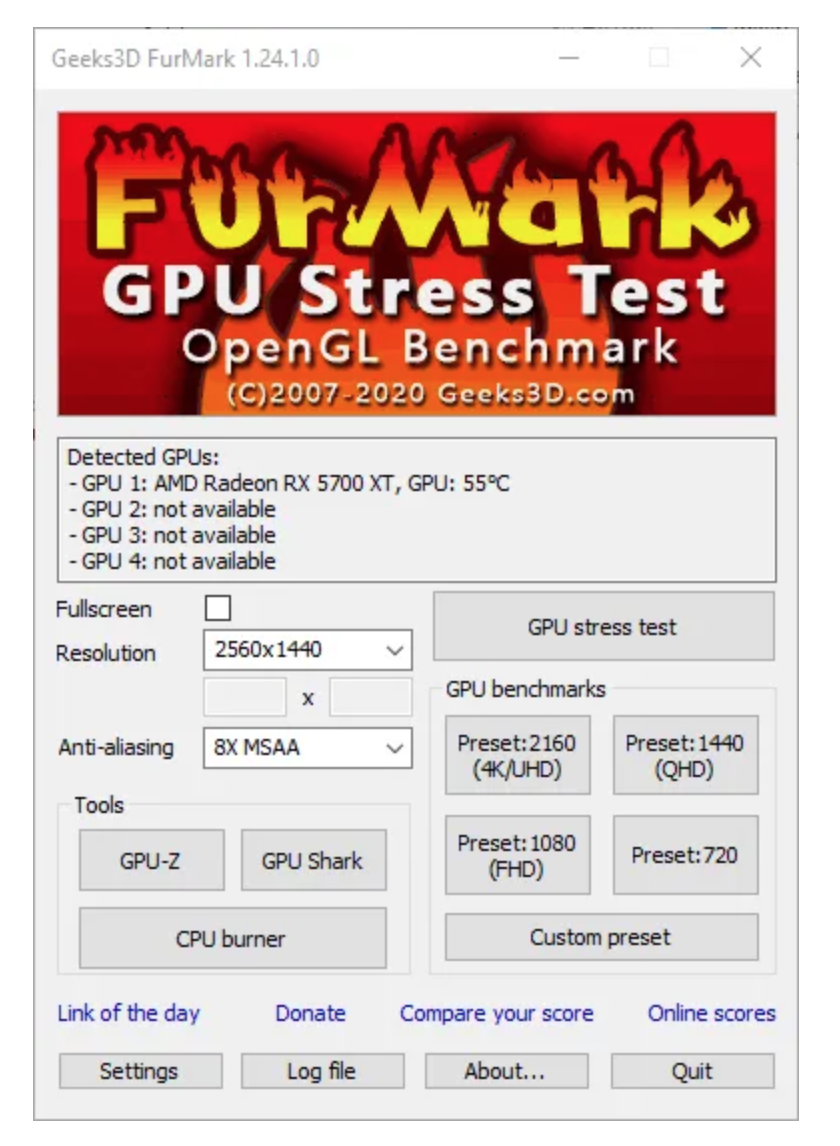
2: Once it’s downloaded and installed successfully, you’ll see various settings to choose from. You should not touch any of the settings. For a regular GPU test, all you have to do is just press the GPU STRESS TEST button.
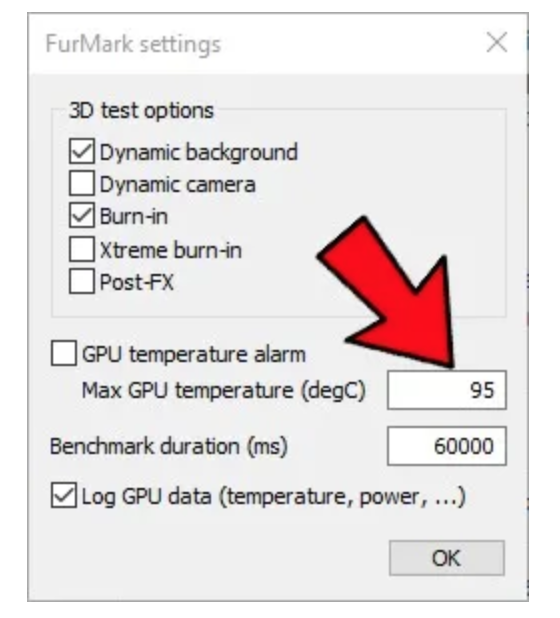
3: Before you run the test, it’s important to look after the temperature warning. Click on “Settings” and tick the “GPU temperature alarm” box, which will warn you if the temperatures hit a set limit by the user.
4: If you are going to launch a default stress test, you can choose the resolution you usually run games at, click on the relevant stress test like “Present:2160(4K.UHD)” or any other option you like under the “GPU benchmarks” menu.
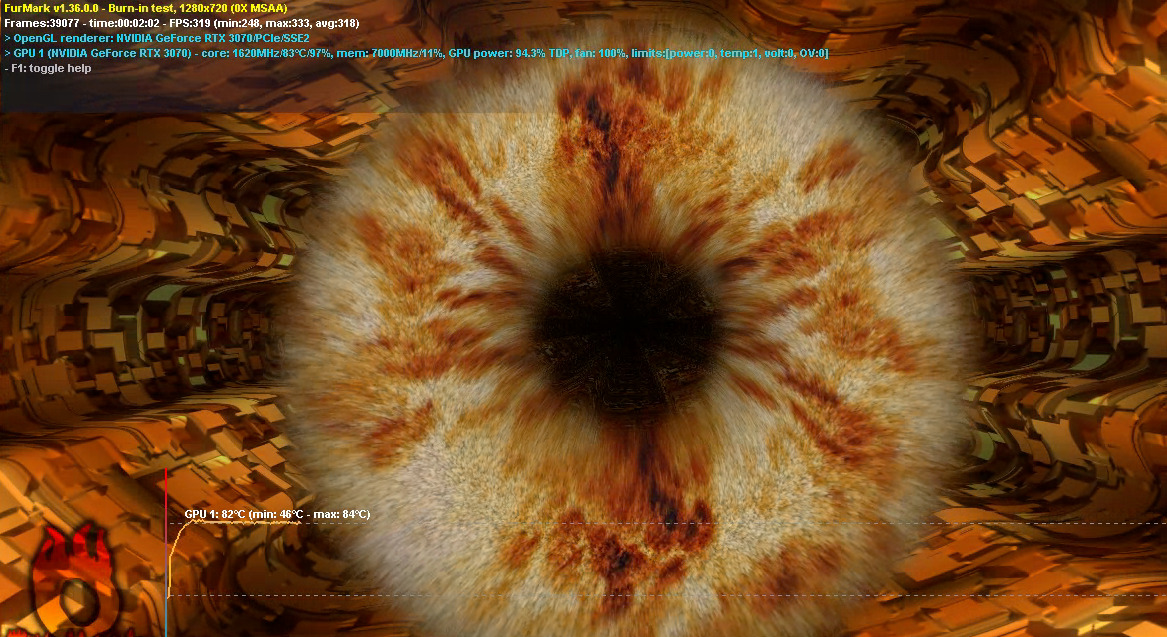
You will see a giant multi color round shape fur will appear on the screen. It will look old-fashioned and scary, but nothing to worry about. When you see this screen, this means the test has begun.
Focus on the temperature section; it will slowly increase the power usage of your GPU. You can also see that the GPU temperature will be slowly increasing. This test normally lasts for 30 minutes. If your computer or laptop manages to run this test for 30 minutes, without giving you any warning signs, that means your graphics card is fine and performing as it should.
5: Keep an eye on the top left corner for the GPU temperature; the same temperature shows at the bottom of the screen. Ideally, it should stay between 75 °C and 85 °C.
While running the stress test, you may or may not notice signs related to a struggling GPU.
The first and very common sign of a hardware problem is FurMark crashing or making your PC crash like the blue screen of death, the display goes blank, or the PC turns off completely. If this happens, it means you need to check your system hardware; it could be anything between the graphics card, the power supply (PSU) or other hardware issues.
If your graphics card is not overclocked and hitting 90 °C to 95 °C during a stress test, you definitely need to improve the cooling system in your PC or laptop. It could be like installing thermal paste on the GPU, cleaning or changing GPU and system fans, or probably improving the overall PC cooling system.
FurMark is a stress test software to check the health of your GPU. It does push the GPU harder than most games do. It doesn’t damage your GPU since it’s going to check the stability and capability of your it. This software will give you certain warnings and alarms if the GPU hits a certain temperature during the test. This means something is already wrong with your GPU, which needs to be solved.
Well, most of the people over the years have given FurMark a name called “heat virus” as well as by GPU manufacturers. Some people have expressed concern about how hard it pushes the limit of the GPU.
We have used this software professionally, and it has helped us a lot to understand the issues going on with GPUs. So the answer is “Big No“, it’s not a virus. This software creates a situation to check the faults in your GPU instead of testing its performance.

From Processor Failure to RAM Slot Repair: How We Fixed a Dell XPS 9570 in Islington 16 Dec, 2025 Facebook Twitter Youtube Instagram At Geeks

High-End Custom Gaming PC Build in Chelsea, London, Built by Geeks Callout 15/12/2025 Facebook Twitter Youtube Instagram At Geeks Callout London, we recently completed a
Are PCIe 5.0 SSDs Worth It for Gamers in London? A Practical Guide Dec , 2025 Facebook Twitter Youtube Instagram If you’re into PC gaming here in

Windows 11 December Update Fixes Taskbar Crashes , But Comes with a Few Hiccups Dec, 2025 Facebook Twitter Youtube Instagram If you’ve been banging your

Case Study: Full Gaming PC Repair & Cooling System Replacement – Camden / Kentish Town Updated: 9 Dec , 2025 Facebook Twitter Youtube Instagram At

Microsoft Surface Laptop 4 (Model 1979) Screen Repair Near Islington – London 25 Nov, 2025 Facebook Twitter Youtube Instagram At Geeks Callout, we receive hundreds