MacBooks are known for their reliability, sleek design, and impressive performance. However, even the most powerful MacBook can become slower over time. If you’ve noticed your MacBook taking longer to start up, applications freezing, excessive fan noise, or sluggish performance while multitasking, you’re not alone.
As we move through 2026, many MacBook users across London, including Barnes and Twickenham, are looking for practical ways to restore their devices’ speed without immediately investing in a replacement. The good news is that many performance issues can be resolved through proper maintenance, software optimization, and professional diagnostics when necessary.
At Geeks Callout, we help MacBook users throughout London improve device performance, resolve technical issues, and extend the lifespan of their Apple devices. In this guide, we’ll explain the most effective methods to speed up your MacBook and improve performance instantly.
Why Does a MacBook Become Slow?
Before applying solutions, it’s important to understand what causes performance issues.
Common reasons include:
- Insufficient storage space
- Too many startup applications
- Outdated macOS software
- Malware or unwanted programs
- Aging batteries
- Overheating components
- Hardware failures
- Damaged SSDs
- Background processes consuming resources
- Memory-intensive applications
Identifying the root cause allows you to apply the most effective fix.
Free Up Storage Space
One of the most common causes of MacBook slowdowns is insufficient storage.
When your SSD is nearly full, macOS has less room to manage temporary files, caches, and virtual memory. This can significantly impact performance.
How to check storage:
- Click the Apple menu.
- Select System Settings.
- Click General.
- Select Storage.
Review which categories consume the most space.
Remove unnecessary files:
- Old downloads
- Duplicate photos
- Unused applications
- Large video files
- Outdated backups
- Temporary files
Maintaining at least 15% to 20% free storage can greatly improve responsiveness.
Reduce Startup Programs
Many applications automatically launch when you start your MacBook.
While convenient, excessive startup programs can increase boot times and consume valuable memory.
To manage startup items:
- Open System Settings.
- Navigate to General.
- Select Login Items.
- Remove applications that don’t need to start automatically.
Reducing startup applications often results in noticeably faster boot times.
Update macOS Regularly
Apple continuously releases updates that improve performance, security, and system stability.
Running outdated software may cause compatibility issues and performance bottlenecks.
To update macOS:
- Open System Settings.
- Click General.
- Select Software Update.
- Install available updates.
Regular updates ensure your MacBook benefits from the latest optimizations and bug fixes.
Close Resource-Hungry Applications
Some applications consume excessive CPU, RAM, and storage resources.
Video editing software, browser tabs, cloud synchronization tools, and virtual machines can significantly affect performance.
Use Activity Monitor:
- Open Finder.
- Navigate to Applications.
- Open Utilities.
- Launch Activity Monitor.
Review CPU and Memory usage.
If a specific application is consuming excessive resources, consider closing or restarting it.
Clear Browser Cache and Extensions
Web browsers are often responsible for sluggish performance.
Over time, cache files, cookies, and unnecessary extensions accumulate.
Improve browser performance by:
- Clearing cache regularly
- Removing unused extensions
- Closing unnecessary tabs
- Updating your browser
- Resetting browser settings if needed
These simple actions can significantly improve browsing speed.
Restart Your MacBook Regularly
Many users leave their MacBook running continuously for weeks.
Although macOS manages memory efficiently, regular restarts help clear temporary files and refresh system processes.
A simple restart can often resolve:
- Slow performance
- Application freezes
- Connectivity issues
- Excessive memory usage
Restarting at least once every few days is recommended.
Check for Malware and Unwanted Software
Many Mac users assume Apple devices cannot become infected with malware.
While macOS offers strong security protections, malware, adware, and potentially unwanted programs can still affect performance.
Warning signs include:
- Unexpected pop-ups
- Browser redirects
- Slow startup times
- Excessive CPU usage
- Unfamiliar applications
Professional malware removal services can safely eliminate these threats and restore performance.
Manage Desktop Clutter
A desktop filled with hundreds of files may slow down your MacBook.
Each desktop item requires system resources to display and manage.
Organize files into folders and remove unnecessary shortcuts to improve responsiveness.
This simple housekeeping task is often overlooked but can produce noticeable results.
Monitor Memory Usage
RAM plays a critical role in overall performance.
If your MacBook constantly runs out of available memory, applications may become sluggish.
Signs of memory pressure:
- Beachball cursor appearing frequently
- Applications freezing
- Delayed switching between programs
- Slow multitasking
Activity Monitor can help identify applications consuming excessive memory.
Closing unnecessary applications can free resources immediately.
Reduce Visual Effects
Modern macOS versions include animations and transparency effects that can impact older MacBooks.
Reducing these effects may improve performance.
To adjust settings:
- Open System Settings.
- Select Accessibility.
- Choose Display.
- Enable Reduce Motion.
- Enable Reduce Transparency.
Older MacBooks often experience noticeable speed improvements.
Optimize Battery Health
An aging battery can sometimes impact overall MacBook performance.
Apple’s power management systems may reduce processor speeds when battery health significantly declines.
Check battery condition:
- Open System Settings.
- Select Battery.
- Click Battery Health.
If battery health is poor, replacement may improve both battery life and performance.
Prevent Overheating
Heat is one of the biggest enemies of computer performance.
When temperatures rise, macOS automatically reduces processor speeds to protect internal components.
Common causes of overheating:
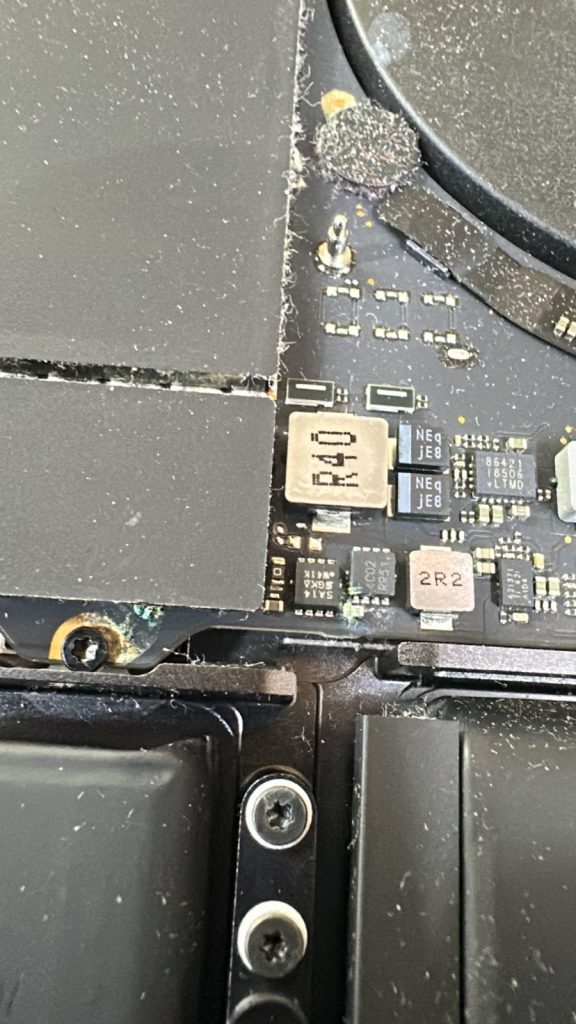
- Dust accumulation
- Blocked air vents
- Faulty cooling systems
- Heavy workloads
- Aging thermal paste
Professional internal cleaning can improve cooling efficiency and restore normal operating temperatures.
Upgrade Your SSD
For older MacBook models, upgrading to a faster SSD can dramatically improve performance.
Benefits include:
- Faster boot times
- Quicker file transfers
- Improved application loading
- Better multitasking
Many users report their MacBook feels almost new after a storage upgrade.
Professional Diagnostics Matter
If your MacBook remains slow despite optimization efforts, there may be underlying hardware issues.
Potential problems include:
- Failing SSDs
- Logic board faults
- Damaged cooling systems
- Battery degradation
- RAM failures
- Power management issues
Professional diagnostics can accurately identify these problems and prevent further damage.
MacBook Repair and Optimization Services in Barnes and Twickenham
For MacBook users in Barnes, Twickenham, and surrounding London areas, professional support can save both time and money.
At Geeks Callout, we provide:
- MacBook diagnostics
- Performance optimization
- SSD upgrades
- Battery replacement
- Virus and malware removal
- Logic board repair
- Liquid damage repair
- Data recovery services
- macOS troubleshooting
- Hardware upgrades
Our experienced technicians use advanced diagnostic equipment to identify performance issues and deliver reliable long-term solutions.
Why London Customers Trust Geeks Callout
Geeks Callout has built a reputation for providing professional computer, laptop, and MacBook repair services across London.
As a winner of the UK Enterprise Awards 2025, including Best Laptop & Computer Repair Business 2025 – London and Customer Service Excellence Award 2025, we remain committed to delivering outstanding service and technical expertise.
Whether you’re experiencing slow performance, startup issues, overheating, battery problems, or hardware failures, our team can help restore your MacBook to peak performance.
Frequently Asked Questions
- Why is my MacBook suddenly running slow?
Sudden slowdowns can be caused by insufficient storage space, software issues, malware, overheating, failing hardware components, or excessive background processes.
- How much free storage should my MacBook have?
For optimal performance, it is recommended to keep at least 15% to 20% of your storage drive free at all times.
- Can an old battery slow down a MacBook?
Yes. When battery health significantly declines, macOS may reduce processor performance to maintain system stability and prevent unexpected shutdowns.
- Is professional MacBook optimization worth it?
Yes. Professional diagnostics can identify hidden software and hardware issues that may not be visible through standard troubleshooting methods, helping extend your device’s lifespan.
- Do you provide MacBook repair services in Barnes and Twickenham?
Yes. Geeks Callout provides MacBook repair, diagnostics, performance optimization, data recovery, battery replacement, and other Apple device services throughout Barnes, Twickenham, and surrounding London areas.