


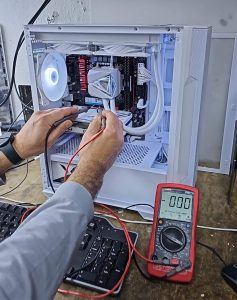

Case Study: Full Gaming PC Repair & Cooling System Replacement – Camden / Kentish Town
Case Study: Full Gaming PC Repair & Cooling System Replacement – Camden / Kentish Town 1 Dec , 2025 Facebook Twitter Youtube Instagram At around

Case Study: Full Gaming PC Repair & Cooling System Replacement – Camden / Kentish Town 1 Dec , 2025 Facebook Twitter Youtube Instagram At around

Microsoft Surface Laptop 4 (Model 1979) Screen Repair Near Islington – London 25 Nov, 2025 Facebook Twitter Youtube Instagram At Geeks Callout, we receive hundreds

Top Gaming CPUs for Smooth Performance on Call of Duty and Fortnite 20 Aug, 2025 Facebook Twitter Youtube Instagram If you’re in London and have

Reducing Computer Downtime for Small London Firms 27 July, 2025 Facebook Twitter LinkedIn Email Pinterest WhatsApp Small businesses in London face intense operational pressures. Even

Cybersecurity Mistakes That Could Cost You Your Laptop , and Your Data 23 July, 2025 Facebook Twitter LinkedIn Email Pinterest WhatsApp Considering just how interconnected

RTX 5090 vs. RTX 4090: Is the Upgrade Worth It? The graphics card market has been reshaped once again, with NVIDIA unveiling the RTX 5090