HP Laptop Stuck on BIOS Screen in Camden, London – Local Repair & Fix
HP Laptop Stuck on BIOS Screen in Camden, London – Local Repair & Fix 15 Jan, 2026 Facebook Twitter Youtube Instagram If your HP laptop keeps booting
@geekscallout
10 May, 2022
Having battery issues in your laptop is an exasperating and exhausting problem. It reduces work efficiency and disturbs your whole schedule. You can’t keep up with work if you get caught up in charging the battery, especially when it turns off unexpectedly that’s why you must fix this issue.
If your laptop is pretty old, it’s understandable why it cannot hold a charge and drains real quick. So, you must know that you should replace the battery or at least get it repaired. But if it’s new, you might think, “Why is my laptop battery draining so fast?” Well, that depends on several reasons.
This article will discuss the possible causes why your laptop battery drains fast, also giving you tips to extend your battery lifespan.
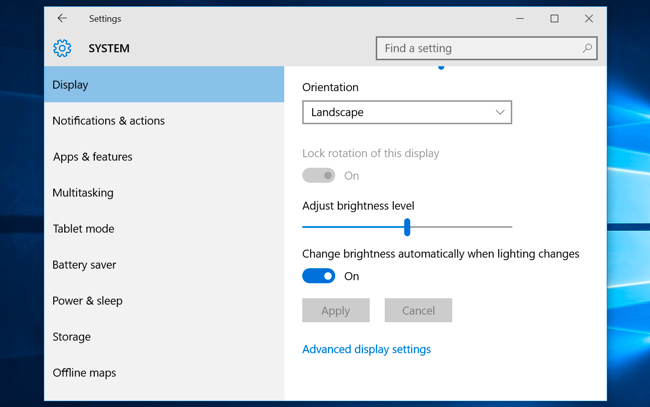
Screen brightness is one of the reasons why your laptop battery drains too fast. Even in smartphones, screen brightness causes quick battery drains and leaves you wondering why the battery gets low when you don’t use it much. So, you must adjust the screen brightness to increase your laptop’s battery life.
Quick Fix
Step 1: Go to the taskbar of your windows and click on the battery icon. If you can’t find the icon there, click on the windows button and type “screen brightness” in the search bar to instantly open the settings.
Step 2: Now, reduce the screen brightness by sliding the pin-like button to save power.
The latest models of laptops allow the screen brightness adjustment using the function keys, which you can press to fix it quickly. Also, you can go to settings, open the “system,” and select the display to manage it.
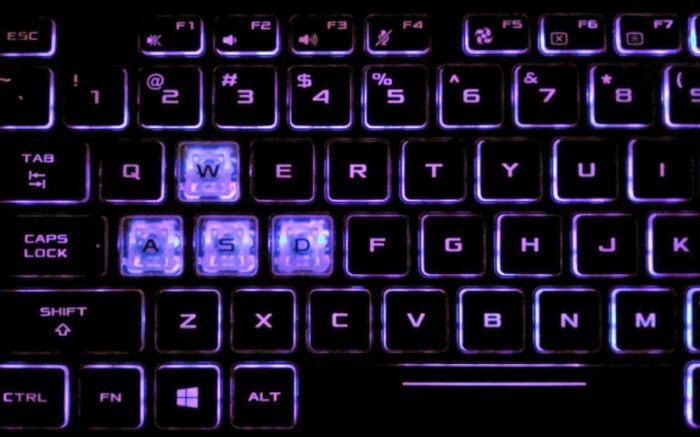
Laptops featuring the keyboard’s backlight to help you write in the dark can also drain the battery fast. You must keep the backlight off when you do not need it to keep the battery performance optimal.
Quick Fix
Step 1: Open the control center and choose “Mouse and Keyboard.”
Step 2: Go to the “Keyboard Backlight” section.
Step 3: Select the option that turns off the backlight.
Having multiple network connections and peripheral devices connected to the laptop drains your battery quickly. You should disable the connections you don’t need and disconnect the peripheral devices. For instance, turn off the Bluetooth connection or Ethernet connection. Also, disconnect gadgets like loudspeakers, microphones, and webcams.
Quick Fix
Step 1: Go to settings and open the “Network Connections.” In other versions of windows, you can open the Control Panel and click on “Network and Internet” to go to “Network Connections.”
Step 2: You can right-click on the networks; you do not need to disable them. Minimizing the number of networks will help in saving up power.
Step 1: Go to the taskbar of your windows.
Step 2: Click on the small arrow to open the hidden icons.
Step 3: Disconnect the devices like the printer, webcam, USB drive, or any other gadget you do not need to use.
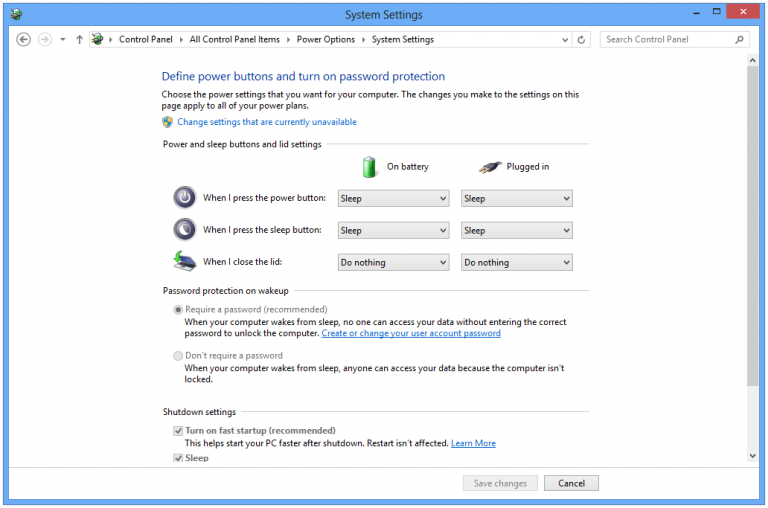
Power settings are another reason for draining your laptop’s battery fast. You can adjust the screen and sleep time. So, when you forget the laptop is turned on, and you’re not using it, it can go to sleep.
Quick Fix
Step 1: Go to settings > system > Power and Sleep. You can also click on the battery icon in the taskbar to open the power options directly.
Step 2: Adjust the power plan to save up the battery.
You can also create your customized power plan if you do not want to go with the existing ones. You can click on the “create a power plan” and customize it.
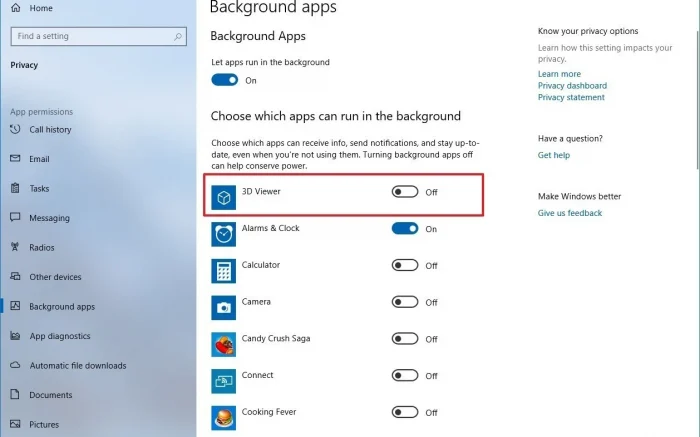
Many applications/programs are running in the background feed on the battery power to stay active. Your laptop battery gets used up without you working on it much. You can turn off the apps and programs you don’t use a lot for the time being and save power.
Quick Fix
Step 1: Go to Settings > Privacy > Background Apps
Step 2: Turn off the background apps you do not frequently use. You can also disable some apps if you don’t need them.
Sometimes you install the same kind of applications like different editing software, which consumes a lot of battery. Likewise, the gaming apps and VPNs too consume a lot of battery and drain it quickly. You’d have to cut down on such programs and uninstall them.
Step 1: Go to the control panel and select Programs > Programs and Features. For modern models, go to settings > Apps and Features.
Step 2: Open the list and uninstall programs that drain the laptop’s battery.
Sometimes you insert a DVD into the disk drive and forget about removing it. This also affects the battery life, allowing it to drain earlier than usual. Simply remove any CD/DVD you have inserted in the disk drive to prevent battery loss.
Quick Fix:
Step 1: Press the eject button on the laptop’s side to remove the CD/DVD. If it doesn’t work out, go to the “My Computer” or “This PC” option.
Step 2: Select the drive icon under “Devices with Removable Storage.” Then right-click on it and choose “Eject.”
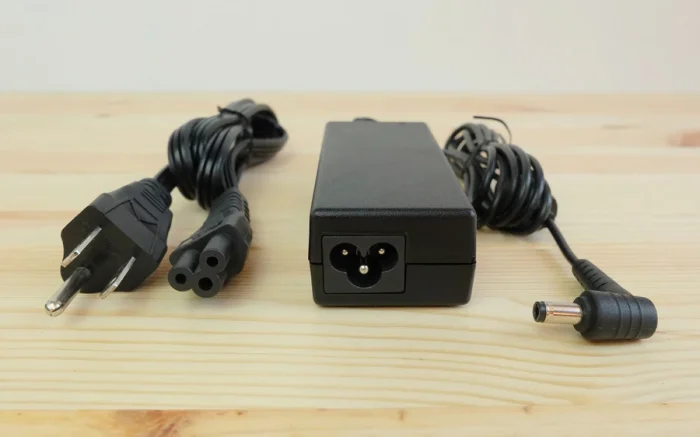
Another reason for your battery to drain fast might be a faulty charger or battery. The taskbar icon shows the plugged-in sign. However, when you click on it, you see that it’s plugged in but not charging. This causes issues in battery charging and allows fast draining of power. It is understandable if it happens to an old laptop. But, if it’s relatively new, you would have to look for a good solution. In this case, you can use your warranty and contact the manufacturer. For an old laptop, you can replace the charger and the battery.
For further inquiries, call us, and our expert PC and Laptop technicians will help you resolve your queries.

HP Laptop Stuck on BIOS Screen in Camden, London – Local Repair & Fix 15 Jan, 2026 Facebook Twitter Youtube Instagram If your HP laptop keeps booting

Dell XPS Not Charging? Charger Seems Fine but the Real Problem Is the Motherboard 06 Jan, 2026 Facebook Twitter Youtube Instagram If your Dell XPS

From Processor Failure to RAM Slot Repair: How We Fixed a Dell XPS 9570 in Islington 16 Dec, 2025 Facebook Twitter Youtube Instagram At Geeks

High-End Custom Gaming PC Build in Chelsea, London, Built by Geeks Callout 15/12/2025 Facebook Twitter Youtube Instagram At Geeks Callout London, we recently completed a

Are PCIe 5.0 SSDs Worth It for Gamers in London? A Practical Guide Dec , 2025 Facebook Twitter Youtube Instagram If you’re into PC gaming here in

Windows 11 December Update Fixes Taskbar Crashes , But Comes with a Few Hiccups Dec, 2025 Facebook Twitter Youtube Instagram If you’ve been banging your