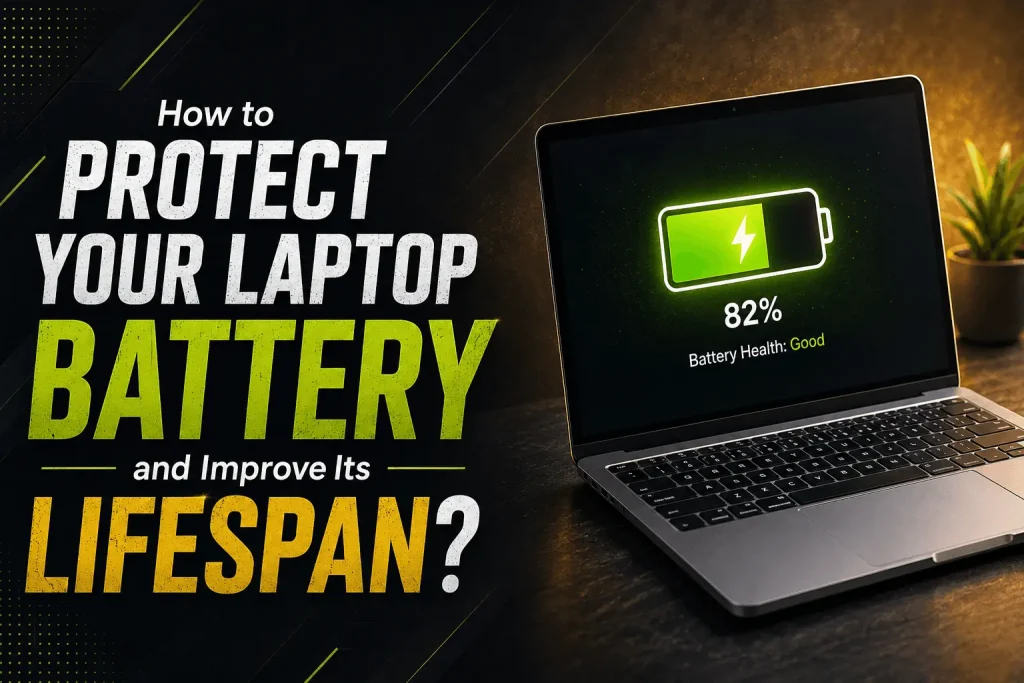
A laptop battery plays a major role in how convenient and portable your computer is. Whether you use your laptop for work, studying, business, entertainment, remote working, or everyday browsing, a healthy battery allows you to stay productive without constantly searching for a power socket.
However, laptop batteries naturally lose capacity as they age. Everyday habits such as repeatedly draining the battery completely, exposing the laptop to excessive heat, using unsuitable chargers, and keeping the battery at a very high charge level for long periods can contribute to faster battery degradation.
The good news is that proper laptop battery care can help reduce unnecessary wear and maintain reliable performance for longer. Modern laptops generally use lithium-ion batteries, which naturally age through use and charging cycles. Microsoft recommends avoiding frequent deep discharges and, when practical, keeping the battery within a moderate range of approximately 20% to 80%.
For laptop users across London, including Tooting, Purley, Wimbledon, and Battersea, simple maintenance habits can make a significant difference. Geeks Callout provides laptop and computer support for customers in these areas, helping with common hardware, performance, and laptop-related problems.
Why Is Laptop Battery Health Important?
A laptop battery is a consumable component. It does not maintain its original capacity forever. Over time, the amount of energy it can store gradually decreases.
When a battery becomes older, you may notice that your laptop:
- Runs for less time on a full charge
- Needs to be charged more frequently
- Shuts down unexpectedly
- Loses battery percentage quickly
- Takes longer to charge
- Becomes unusually warm
- Shows battery health warnings
- Does not charge properly
Battery aging is normal, but poor usage conditions can accelerate the process. Understanding how to look after your battery can help you get more useful years from your laptop.
1. Avoid Regularly Draining the Battery to 0%
One of the most important battery-care habits is avoiding frequent complete discharges.
Modern lithium-ion batteries do not need to be drained completely before they are recharged. Regular deep discharges can contribute to battery degradation over time.
Instead of waiting for the laptop to shut down automatically, consider connecting the charger when the battery becomes relatively low.
For everyday use, maintaining the battery within a moderate charge range can be a useful approach. Microsoft recommends approximately 20% to 80% when practical to help slow battery degradation.
This does not mean you must constantly monitor the battery percentage. The goal is simply to avoid making complete battery drainage a regular habit.
2. Protect Your Laptop From Excessive Heat
Heat is one of the biggest factors that can affect lithium-ion battery health.
Using or charging a laptop at high temperatures can accelerate battery deterioration and permanently reduce its capacity.
Laptop temperatures can increase when:
- The cooling vents are blocked
- The laptop is used on a bed or soft surface
- Dust has accumulated inside the device
- The cooling fan is not working properly
- Multiple demanding applications are running
- The laptop is used for intensive gaming
- Video editing or rendering is performed for long periods
- The laptop is exposed to direct sunlight
Whenever possible, place your laptop on a firm, flat surface that allows proper airflow.
If your laptop becomes extremely hot during normal use, do not ignore the problem. Excessive heat can indicate a blocked ventilation system, failing fan, dust buildup, thermal-management problems, or another hardware issue.
3. Keep Laptop Air Vents Clear
Good airflow is essential for maintaining safe operating temperatures.
Using a laptop on a bed, sofa, blanket, or cushion may block ventilation openings. Even though this may feel comfortable, it can restrict airflow and cause the internal temperature to increase.
For regular laptop use, a desk or table is generally a better option.
You should also keep the area around the laptop’s vents free from dust and other obstructions. If the internal cooling system has accumulated significant dust, professional cleaning may be necessary.
Proper cooling is particularly important when charging your laptop while performing demanding tasks.
4. Use Smart Charging Features
Many modern laptops include battery-management features that can help reduce unnecessary battery wear.
Depending on the device, these may include:
- Smart charging
- Battery conservation mode
- Battery health management
- Charge limits
- Battery lifespan modes
Smart charging can prevent the battery from remaining at 100% for extended periods. On supported Windows devices, smart charging may deliberately keep the battery below full capacity to help maintain long-term battery health.
If your laptop is normally connected to mains power for most of the day, check its manufacturer’s battery settings.
Using an appropriate charge-limit feature can be particularly useful for people who primarily use their laptops at a fixed desk.
5. Avoid Keeping the Battery at 100% All the Time
Keeping a laptop plugged in does not necessarily mean the battery is continuously being charged. Modern systems have charging controls.
However, maintaining a lithium-ion battery at a very high charge level for extended periods can contribute to faster degradation. Smart charging features are designed to help address this issue on supported devices.
If your laptop offers a battery conservation or charge-limit option, consider using it when you regularly work from the same location.
You do not need to obsess over the exact percentage every day. Good battery care is about reducing unnecessary stress rather than following a perfect charging routine.
6. Use the Correct Laptop Charger
Using the correct charger is essential for safe and reliable laptop operation.
A charger should be compatible with your laptop’s required power specifications. With USB-C laptops, remember that USB-C describes the connector type, not necessarily the power capability of the charger.
A charger may physically fit the port but still not provide the appropriate power.
If your laptop:
- Charges very slowly
- Stops charging randomly
- Displays a charger warning
- Gets unusually hot while charging
- Switches between charging and discharging
the charger, charging port, battery, or internal power circuitry may need inspection.
Avoid using damaged charging cables or poorly matched power adapters.
7. Reduce Unnecessary Battery Consumption
Battery lifespan and battery runtime are different things.
Battery runtime describes how long the laptop operates on its current charge.
Battery lifespan describes how long the battery remains useful before it needs replacement.
Reducing unnecessary power consumption can improve your daily runtime and reduce how frequently you need to recharge.
Consider:
- Lowering screen brightness
- Closing unused applications
- Reducing unnecessary browser tabs
- Disabling Bluetooth when it is not needed
- Disconnecting unused USB devices
- Using Energy Saver or Battery Saver
- Shortening screen timeout settings
- Reducing the display refresh rate when appropriate
8. Manage Background Applications
Some applications continue running even when you are not actively using them.
Background processes can consume processor resources, memory, network resources, and battery power.
If your battery suddenly starts draining much faster than normal, check which applications are consuming the most energy.
Unnecessary startup applications can also increase system activity and reduce battery runtime.
Regularly reviewing your installed applications and background processes can help identify software that is using more resources than expected.
9. Keep Your Laptop Updated
Operating system, driver, and firmware updates can help maintain overall system reliability and power management.
Keeping your laptop updated is therefore an important part of general maintenance.
If you notice sudden battery-drain problems after installing new software or updates, investigate the issue rather than immediately assuming the battery needs replacement.
A battery problem can sometimes be related to software, background processes, drivers, or system configuration.
10. Check Your Battery Health
It is useful to monitor battery condition before a serious problem develops.
Windows 11 includes a built-in battery report that provides information about battery capacity and usage. You can generate the report using the command:
powercfg /batteryreport
11. Avoid Using Your Laptop in Direct Sunlight
London’s weather may often be cool, but laptops can still become hot when exposed to direct sunlight, particularly near windows, outdoors, or in warm vehicles.
Avoid leaving your laptop in direct sunlight for extended periods.
If you travel with your laptop, allow it to return to a reasonable temperature before putting it under heavy workload or charging it.
12. Store Your Laptop Properly
If you will not use your laptop for several weeks or months, proper storage is important.
For long-term storage, avoid leaving the battery completely empty or fully charged.
Before storing a laptop:
- Charge it to a moderate level.
- Shut it down properly.
- Store it somewhere cool and dry.
- Keep it away from direct sunlight.
- Protect it from moisture.
- Check the battery occasionally during extended storage.
These steps can help reduce unnecessary battery degradation.
13. Watch for Battery Swelling
Battery swelling should never be ignored.
A swollen battery may cause:
- The laptop case to become distorted
- The trackpad to lift
- Gaps to appear around the laptop body
- The keyboard or bottom panel to rise
- Unusual pressure inside the chassis
Do not attempt to puncture, crush, or forcibly remove a swollen battery yourself.
If you notice swelling, stop using the laptop and arrange professional assistance.
14. Don’t Ignore Unexpected Shutdowns
If your laptop suddenly turns off even though the battery indicator shows plenty of remaining charge, investigate the issue.
Unexpected shutdowns can be associated with:
- Battery degradation
- Overheating
- Faulty charging systems
- Power-management problems
- Hardware faults
- Software problems
An aging battery may no longer provide stable power under certain conditions.
Professional diagnosis can help determine whether the battery needs replacing or whether another component is responsible.
15. Know When Battery Replacement Is Necessary
Even excellent battery care cannot stop natural battery aging.
Eventually, the battery may reach a point where replacement is the most practical option.
Consider having the battery inspected if:
- Runtime has become extremely short
- The battery percentage falls unusually quickly
- The laptop shuts down unexpectedly
- The battery does not charge correctly
- The laptop becomes unusually hot
- The operating system reports poor battery health
- The battery shows physical swelling
Replacing a worn battery can sometimes extend the useful life of an otherwise reliable laptop.
However, battery replacement should be performed using a compatible replacement battery and appropriate procedures.
Laptop Battery Support in London
Laptop users in London often rely on their devices for work, education, communication, business, and entertainment. A battery problem can therefore become inconvenient very quickly.
Geeks Callout provides laptop and computer support across London, with key service areas including Tooting, Purley, Wimbledon, and Battersea.
If your laptop has battery-drain problems, charging issues, overheating, unexpected shutdowns, or other hardware concerns, professional laptop support can help identify the cause and determine the most appropriate solution.
Getting a problem diagnosed early may also help prevent a small issue from developing into a more expensive repair.
Simple Daily Laptop Battery Care Routine
You do not need a complicated routine to take better care of your laptop battery.
A practical daily approach includes:
- Keep the laptop on a hard, ventilated surface.
- Avoid unnecessary exposure to heat.
- Do not regularly drain the battery completely.
- Use the correct charger.
- Enable smart charging or charge limits when available.
- Reduce unnecessary background applications.
- Use energy-saving settings when appropriate.
- Keep your operating system updated.
- Monitor battery performance.
- Take unusual heating or swelling seriously.
Small habits repeated consistently can help protect your laptop and improve its long-term usability.
Frequently Asked Questions
1. What is the best way to protect a laptop battery?
Avoid frequent complete discharges, protect the laptop from excessive heat, use the correct charger, and enable smart charging or battery-conservation features when available. Keeping the battery within a moderate range, roughly 20% to 80% when practical, can help reduce battery degradation.
2. Is it bad to leave my laptop plugged in all day?
Modern laptops have charging-management systems, but keeping a lithium-ion battery at 100% for extended periods can contribute to faster deterioration. If your laptop supports smart charging or a charge limit, using that feature can help manage long periods of plugged-in use.
3. Should I let my laptop battery reach 0% before charging?
No. Modern lithium-ion laptop batteries do not need to be completely drained before charging. Frequent deep discharges are best avoided because they can contribute to faster battery degradation.
4. What should I do if my laptop battery is swollen?
Stop using the laptop and do not press, puncture, crush, or attempt to repair the swollen battery yourself. Battery swelling can present a safety risk and should be handled appropriately by a qualified professional.
5. When should I replace my laptop battery?
You may need a replacement when the laptop has extremely short battery runtime, unexpected shutdowns, significant battery-health deterioration, charging problems, or physical battery damage. A professional diagnosis can help determine whether the battery needs replacement or whether another laptop component is causing the problem.