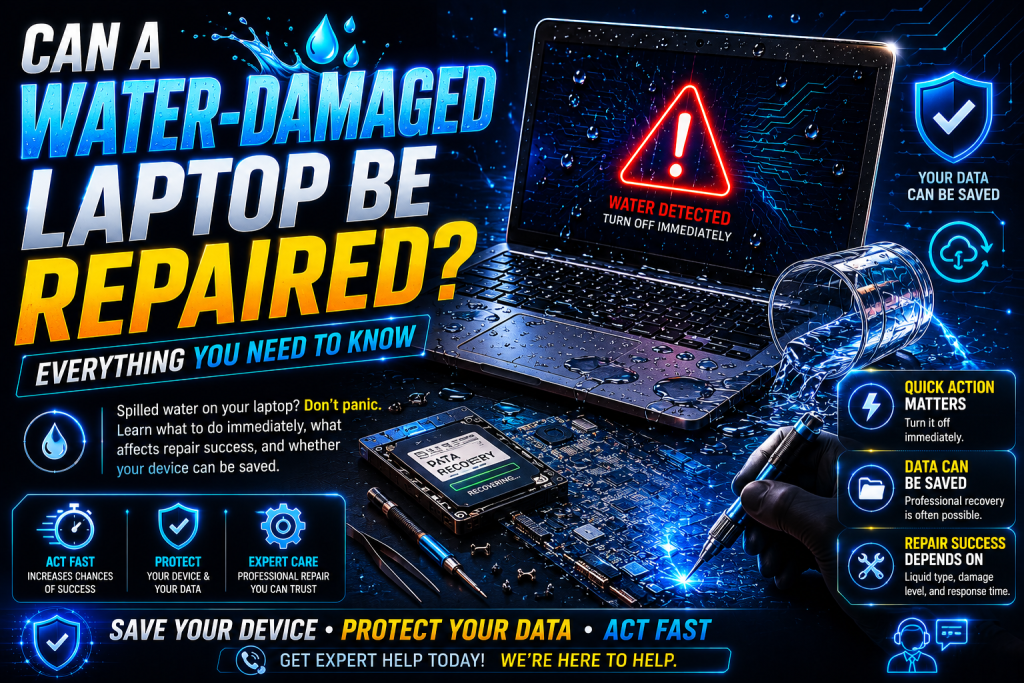
A laptop is one of the most valuable tools in modern life. Whether you use it for work, education, gaming, or running a business, it contains important files, personal memories, and essential software. Unfortunately, one of the most common accidents affecting laptops is liquid damage.
From a spilled cup of coffee during a morning meeting to a knocked-over water bottle at home, liquid accidents happen unexpectedly. In 2026, laptops have become thinner and more powerful, but they are still vulnerable to moisture entering internal components. Even a small amount of liquid can cause permanent damage if the correct action isn’t taken immediately.
Knowing exactly what to do in the first few minutes after a spill can dramatically increase the chances of saving your device while reducing repair costs.
If you’re based in London, including Whitechapel, Isleworth, or Notting Hill, this guide explains everything you need to know about handling laptop liquid damage and when it’s time to seek professional assistance from geeks callout.
Why Liquid Damage Is So Dangerous
Unlike a cracked screen or broken keyboard, liquid damage affects your laptop internally.
Water and other beverages can:
- Short-circuit electrical components
- Corrode motherboard circuits
- Damage SSD connections
- Destroy keyboard membranes
- Affect charging circuits
- Cause battery issues
- Damage display connectors
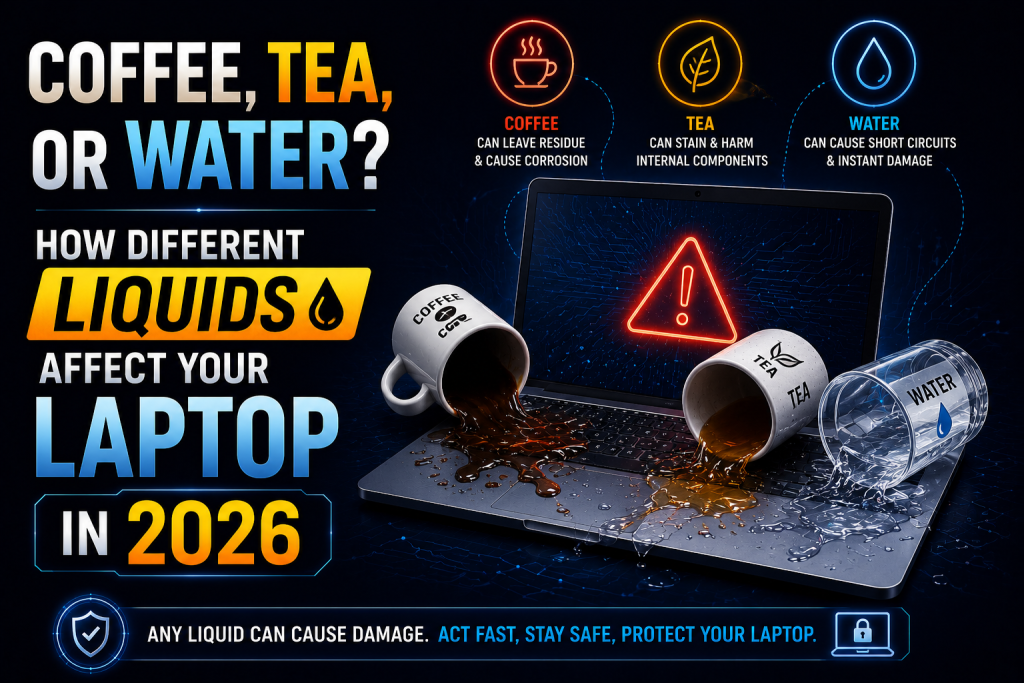
Sugary drinks, coffee, tea, juice, wine, and soft drinks are even more dangerous because they leave sticky residues that continue causing corrosion long after the spill.
The faster you respond, the greater the chances of saving your laptop.
The First 60 Seconds Matter
Many people make the mistake of trying to continue using their laptop after a spill.
This is one of the worst things you can do.
Electricity and moisture do not mix. The current flowing through the motherboard can instantly destroy tiny components that would otherwise have survived.
Immediate action is critical.
Step 1: Turn Off Your Laptop Immediately
Do not wait for Windows or macOS to shut down normally.
Instead:
- Hold the power button until the device powers off.
- If possible, disconnect the charger immediately.
- Remove every connected accessory.
This includes:
- USB drives
- External hard drives
- Mouse
- Keyboard
- HDMI cables
- SD cards
Removing external devices reduces the risk of additional electrical damage.
Step 2: Disconnect the Power Supply
The charger continues supplying electricity even if the laptop is switched off.
Immediately unplug:
- Power adapter
- USB-C charging cable
- Docking station
Never leave electricity connected after a liquid spill.
Step 3: Remove the Battery (If Possible)
Some laptops still have removable batteries.
If yours does:
- Remove it immediately.
- Avoid touching wet internal components.
For modern sealed laptops, avoid attempting complex disassembly unless you’re experienced.
Professional technicians have the correct tools to safely disconnect internal batteries.
Step 4: Turn the Laptop Upside Down
Gravity can help prevent liquid from spreading deeper inside.
Open the screen to around 120 degrees.
Place the laptop upside down in an inverted “V” position.
This allows excess liquid to drain away from the motherboard.
Step 5: Dry the Exterior Carefully
Use a clean microfiber cloth.
Avoid:
- Paper towels that leave fibres
- Hair dryers
- Heat guns
- Radiators
High temperatures can damage sensitive electronic components.
Instead, gently blot away visible moisture.
Never wipe aggressively.
Step 6: Do NOT Press Any Keys
People naturally try to check whether the keyboard still works.
Avoid pressing:
- Power button
- Keyboard keys
- Touchpad
- Function buttons
Every key press can push liquid deeper into the keyboard assembly.
Step 7: Never Shake the Laptop
Shaking spreads liquid throughout the internal components.
Instead of helping, it can move water into areas that were previously dry.
Always keep the laptop stable.
Common Liquids That Cause Damage
Not every liquid behaves the same way.
Water
Water causes electrical short circuits but leaves minimal residue if cleaned quickly.
Coffee
Coffee contains acids and oils.
These create corrosion on delicate motherboard components.
Tea
Tea contains minerals that can damage electrical pathways over time.
Soft Drinks
Sugary beverages are among the worst.
Sugar hardens inside the keyboard and motherboard, causing long-term failures.
Milk
Milk leaves proteins and fats that create sticky residue and unpleasant odours.
Alcohol
Although alcohol evaporates quickly, mixed drinks often contain sugar that causes corrosion.
Should You Put Your Laptop in Rice?
This is one of the biggest myths.
Rice:
- Does not remove trapped moisture
- Cannot clean sticky residue
- May introduce dust particles
- Can delay professional treatment
Instead, allow trained technicians to properly disassemble and clean the laptop using specialist equipment.
Why You Shouldn’t Use a Hair Dryer
Many people believe warm air speeds up drying.
In reality:
- Heat damages plastic parts.
- High temperatures warp keyboards.
- Moisture gets pushed deeper inside.
Controlled professional drying is far safer.
Hidden Damage Can Appear Days Later
Even if your laptop seems to work after drying, internal corrosion may continue.
Signs include:
- Random shutdowns
- Keyboard failure
- Screen flickering
- Charging problems
- Overheating
- Slow performance
- Boot errors
These symptoms may appear several days or even weeks after the spill.
Professional Liquid Damage Cleaning
Professional repair goes far beyond simple drying.
Technicians typically:
- Fully disassemble the laptop
- Disconnect the battery safely
- Inspect all internal components
- Remove corrosion
- Clean residue using specialist solutions
- Test the motherboard
- Replace damaged components
- Reassemble and perform quality testing
This process greatly improves the chance of successful recovery.
Can Your Data Be Saved?
In many cases, yes.
Even if the laptop no longer powers on, the storage drive may still be recoverable.
Professional technicians can often retrieve:
- Documents
- Photos
- Videos
- Business files
- Academic work
- Software projects
Attempting DIY repairs can reduce the likelihood of successful data recovery.
Prevention Tips for 2026
Prevention is always less expensive than repairs.
Follow these habits:
- Keep drinks away from your workspace.
- Use a spill-resistant bottle.
- Invest in a keyboard cover.
- Regularly back up your files to cloud storage.
- Avoid eating or drinking directly over your laptop.
- Use a laptop stand when possible.
- Keep liquids on a separate surface.
These simple precautions can prevent costly accidents.
Why Fast Repairs Matter
Corrosion begins almost immediately after liquid enters electronic components.
Waiting several days before seeking help can turn a repairable laptop into one requiring a complete motherboard replacement.
Early intervention often means:
- Lower repair costs
- Faster turnaround
- Better chance of data recovery
- Higher success rate
Laptop Liquid Damage Services in London
If you’ve experienced a laptop spill, professional inspection is always recommended—even if the device appears to function normally.
At geeks callout , experienced technicians provide professional laptop liquid damage diagnosis and repair throughout London.
Service areas include:
- Whitechapel
- Isleworth
- Notting Hill
Whether your laptop has suffered water damage, coffee spills, tea accidents, or soft drink exposure, prompt professional attention can significantly improve the chances of restoring your device while protecting your important files.
Frequently Asked Questions (FAQs)
- Can a laptop survive water damage?
Yes. Many laptops can be successfully repaired if they are switched off immediately and professionally cleaned before corrosion causes permanent damage.
- How long should I wait before turning my laptop back on?
You should not turn it back on until it has been professionally inspected and completely dried. Powering it on too early can cause irreversible electrical damage.
- Is coffee more damaging than water?
Yes. Coffee contains oils, acids, and often sugar, which leave residue that accelerates corrosion and increases the risk of long-term component failure.
- Will putting my laptop in rice fix liquid damage?
No. Rice does not remove internal moisture or clean residue from electronic components. Professional cleaning is the safest and most effective solution.
- Which London areas are covered for laptop liquid damage repairs?
Professional repair services are available across London, including Whitechapel, Isleworth, and Notting Hill, providing expert diagnosis, cleaning, and repair for liquid-damaged laptops.