A laptop is an important part of modern life. Whether you use it for work, business, education, entertainment, online meetings, or personal projects, you expect it to remain fast and reliable. Unfortunately, laptops can become slower, hotter, and less responsive as they get older.
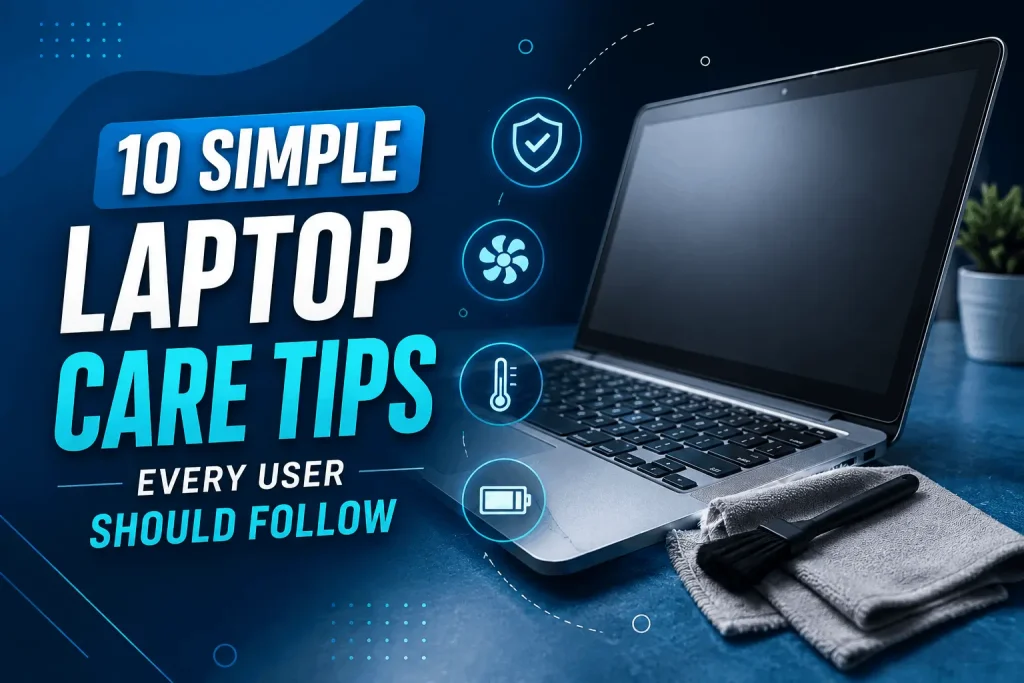
The good news is that many common laptop performance problems can be reduced with regular care and maintenance. You do not always need to replace an older laptop simply because it has become slower. Cleaning the device, managing storage, controlling heat, updating software, protecting your data, and looking after the battery can help extend its useful life.
For laptop users in London, professional support can also be valuable when routine maintenance is not enough. Geeks Callout provides laptop repair and technical support services for customers in Feltham, Hounslow, Hayes, Chertsey, and surrounding areas.
Why Laptop Maintenance Is Important
Every laptop experiences normal wear and tear. Over time, dust can collect inside the cooling system, storage space can become limited, software can become outdated, and batteries naturally lose capacity.
Poor maintenance can contribute to:
- Slow startup times
- Application freezing
- Excessive fan noise
- Overheating
- Unexpected shutdowns
- Reduced battery life
- Storage problems
- Software crashes
- Poor overall responsiveness
Regular maintenance helps you identify potential problems before they become serious.
Think of laptop maintenance as a combination of cleaning, cooling, software management, security, battery care, and professional servicing when necessary.
1. Keep Your Laptop Physically Clean
Dust and dirt are among the most common enemies of electronic equipment.
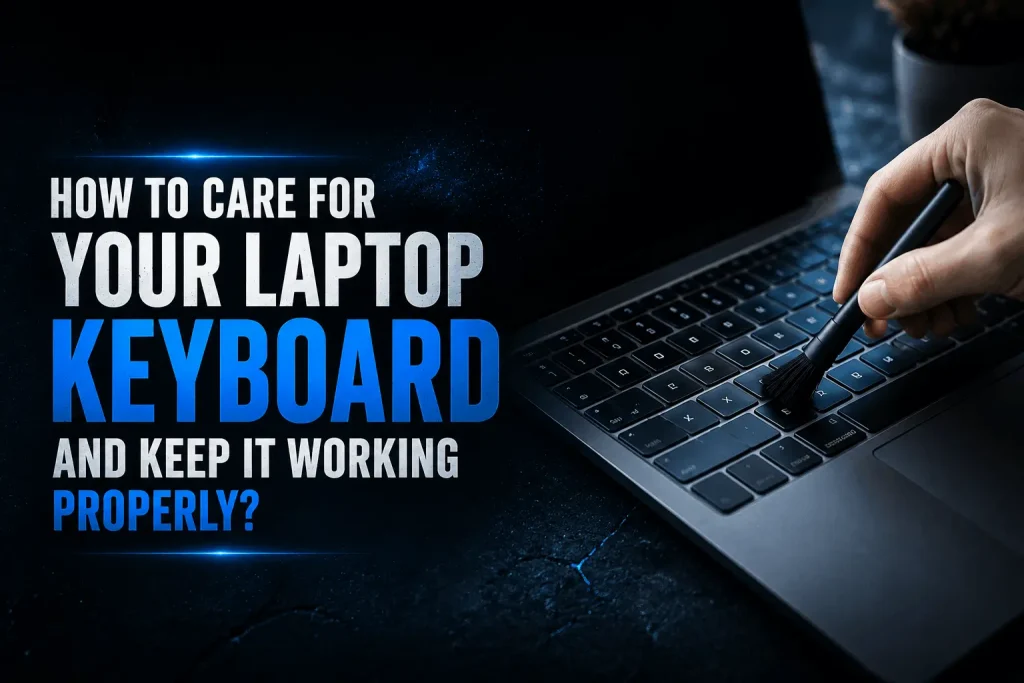
Your laptop’s keyboard, screen, touchpad, ports, and ventilation openings can collect dust during everyday use. If dust accumulates around the cooling vents, airflow may become restricted.
Use a clean microfiber cloth to wipe the screen, keyboard, touchpad, and external surfaces.
For ventilation areas, use an appropriate cleaning method and avoid inserting sharp objects into the vents.
Always turn the laptop off and disconnect it from power before performing physical cleaning.
A few minutes of regular cleaning can help keep your laptop in better condition.
2. Keep the Cooling Vents Unblocked
A laptop needs good airflow to manage heat.
One of the easiest ways to protect your laptop is to use it on a firm, flat surface. Avoid placing it directly on beds, blankets, cushions, or thick carpets because these surfaces can block ventilation openings.
When the vents are blocked, hot air may not escape effectively. The internal temperature can rise, and the cooling fan may run more frequently.
If you regularly use your laptop for demanding work, make sure there is enough space around the device for air circulation.
3. Clean Dust From the Cooling System
External cleaning is useful, but dust can eventually accumulate inside a laptop.
Internal dust buildup can affect fans, heatsinks, and other cooling components. This can cause higher operating temperatures and increased fan noise.
If your laptop is several years old, becomes unusually hot, or the fan constantly runs at high speed, professional internal cleaning may be worth considering.
Opening a laptop requires care because different models have different internal layouts. If you are not experienced with laptop hardware, professional servicing is safer than experimenting with delicate components.
4. Keep Your Laptop Away From Extreme Heat
High temperatures can affect laptop components and battery performance.
Avoid leaving your laptop in places where temperatures can become extreme, such as a closed vehicle exposed to direct sunlight.
During intensive tasks, your laptop may naturally become warmer. However, persistent excessive heat should not be ignored.
Signs that your laptop may be experiencing a heat-related problem include:
- Very loud cooling fans
- Frequent thermal warnings
- Unexpected shutdowns
- Extremely hot surfaces
- Performance becoming slower during demanding tasks
- The laptop becoming uncomfortable to use
If these symptoms continue, have the laptop inspected.
5. Manage Your Storage Space
A laptop can become harder to manage when its storage drive is almost full.
Over the years, users accumulate downloads, videos, photographs, documents, applications, temporary files, and duplicate data.
Review your storage regularly and remove files you no longer need.
You can organize your files into categories such as:
- Work
- Personal
- Photos
- Videos
- Documents
- Downloads
- Projects
- Archives
Important files should be backed up before deleting or moving them.
Do not delete system files simply because you do not recognize them.
6. Uninstall Programs You No Longer Use
Unused applications can occupy storage and may sometimes run background processes.
Review the programs installed on your laptop and remove applications you no longer need.
However, be careful when uninstalling software. Some programs may be required for hardware functionality, system operations, security, or other applications.
If you are unsure about a particular program, find out what it does before removing it.
Keeping your software environment organized can make your laptop easier to maintain.
7. Reduce Unnecessary Startup Programs
If your laptop takes a long time to become ready after you turn it on, startup applications may be part of the problem.
Many applications configure themselves to launch automatically. While some startup programs are necessary, others may not need to run every time you start the laptop.
Review your startup settings and disable applications that do not need to launch automatically.
Be careful not to disable essential security tools, drivers, or system components.
Reducing unnecessary startup activity can help improve boot times and make the laptop feel more responsive.
8. Keep Your Operating System Updated
Software updates are an important part of keeping your laptop healthy.
Updates may contain:
- Security improvements
- Bug fixes
- Compatibility improvements
- Stability updates
- Performance improvements
Configure your laptop to receive important updates and restart the device when necessary.
Avoid postponing important updates indefinitely.
If an update repeatedly fails or causes unusual problems, investigate the issue rather than continuously ignoring it.
9. Keep Applications Updated
Your operating system is not the only software that requires maintenance.
Web browsers, productivity applications, security tools, communication software, and other programs may also receive regular updates.
Using outdated applications can create compatibility and security problems.
Where appropriate, enable automatic updates from trusted sources.
Avoid downloading software updates from suspicious websites or unknown links.
10. Protect Your Laptop From Malware
A laptop that suddenly becomes slow may have many possible causes, including malware.
Malicious software can consume system resources, display unwanted advertisements, interfere with applications, or compromise personal information.
Protect your laptop by:
- Using reputable security software
- Keeping security tools updated
- Avoiding suspicious downloads
- Being careful with email attachments
- Avoiding unknown links
- Downloading software from trusted sources
- Using strong and unique passwords
If you notice unusual laptop behavior, run an appropriate security scan and consider professional assistance if the issue continues.
11. Restart Your Laptop Regularly
Some users leave their laptops running for very long periods without restarting them.
A regular restart can help clear temporary system states, apply certain updates, and refresh system processes.
If you notice applications becoming less responsive after extended use, restarting the laptop may help.
For laptops that are used every day, developing a simple restart routine can be a useful maintenance habit.
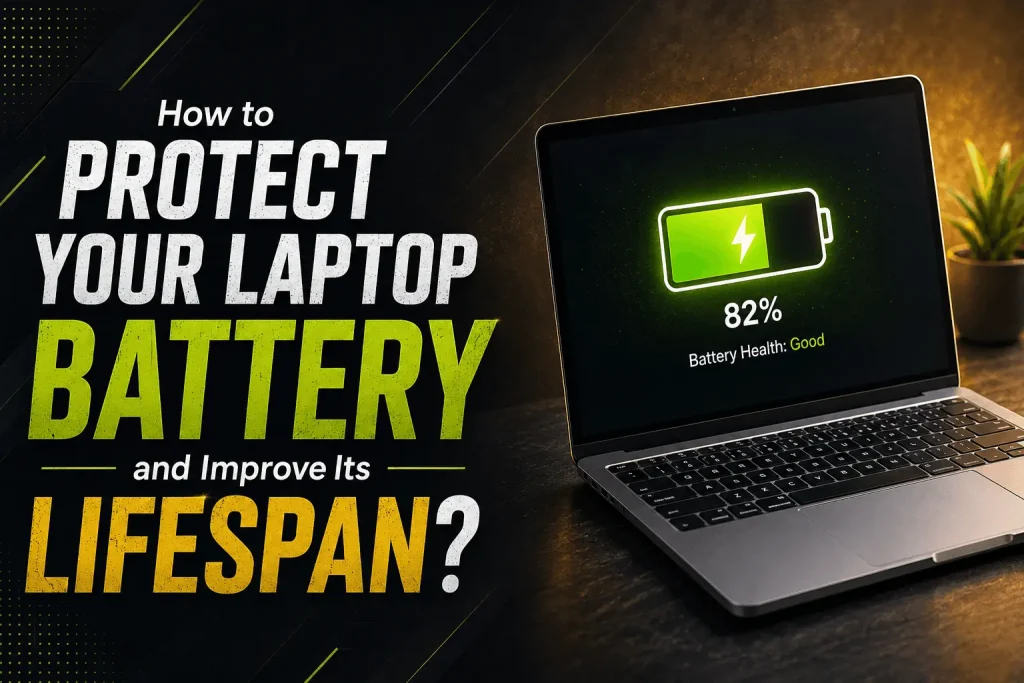
12. Take Care of Your Laptop Battery
Laptop batteries naturally lose capacity as they age.
Good usage habits can help you get the best practical performance from the battery.
Avoid exposing the laptop to extreme temperatures and use suitable charging equipment.
Watch for signs of battery problems, such as:
- Rapid battery drain
- Unexpected shutdowns
- Battery percentage behaving unusually
- Excessive heat
- Physical swelling
A swollen or damaged battery should not be opened, punctured, or handled unnecessarily. Stop using the device and seek professional help.
13. Handle Your Laptop Carefully
Physical damage is another common reason laptops require repair.
Avoid carrying your laptop loosely in a bag where it can collide with hard objects. Use suitable protection when transporting it.
Be particularly careful with:
- Hinges
- Screen
- Charging connector
- USB ports
- Keyboard
- Touchpad
- Corners and casing
Never pick up a laptop by its screen.
If the hinge becomes loose or the casing begins to separate, get it checked instead of continuing to force the device open and closed.
14. Protect the Laptop From Liquid Damage
Liquid and electronics do not mix.
Keep drinks away from your laptop whenever possible. A small spill can potentially damage the keyboard and internal components.
If liquid is accidentally spilled onto the laptop, do not continue using it simply because it appears to work normally.
Turn it off, disconnect power, and seek appropriate technical advice.
Avoid repeatedly switching a liquid-damaged laptop on to test it.
15. Keep Your Files Backed Up
A healthy laptop can still fail unexpectedly.
Hard drives, solid-state storage, batteries, motherboards, and other components can develop faults.
Regular backups protect you from data loss.
Important files can be backed up using suitable external storage or cloud-based solutions.
Consider backing up:
- Business documents
- Family photographs
- Financial records
- Educational work
- Creative projects
- Videos
- Password recovery information
- Other irreplaceable files
A backup strategy should be part of laptop maintenance rather than something you only think about after a failure.
16. Monitor Your Laptop’s Performance
Pay attention to changes in your laptop’s behavior.
A gradual reduction in performance may be normal as software becomes more demanding, but sudden changes can indicate a problem.
Look for:
- Longer startup times
- Frequent freezing
- Applications crashing
- Unusual fan activity
- Excessive heat
- Battery problems
- Slow internet caused by device-related issues
- Unexpected error messages
Identifying problems early can sometimes prevent more expensive repairs.
17. Know When Professional Laptop Repair Is Needed
Basic maintenance is useful, but some problems require professional diagnosis.
Consider professional laptop repair if:
- The laptop will not power on
- The battery is swollen
- The screen is damaged
- The charging port is faulty
- The laptop repeatedly overheats
- The cooling fan makes unusual noises
- The keyboard stops working
- The laptop frequently crashes
- Storage is failing
- The laptop has suffered liquid damage
- Performance remains poor despite maintenance
Trying to repair complex internal components without the right tools or knowledge can cause additional damage.
Laptop Repair Services in Feltham, Hounslow, Hayes, and Chertsey
If you are located in London or nearby areas and your laptop needs more than routine maintenance, professional technical support can help.
Geeks Callout provides laptop repair and support services covering Feltham, Hounslow, Hayes, Chertsey, and surrounding areas.
Whether your laptop is overheating, running slowly, experiencing charging problems, or showing signs of hardware failure, professional diagnostics can help identify the underlying cause.
You can learn more about available laptop services through the Geeks Callout website.
How Long Can a Well-Maintained Laptop Last?
The lifespan of a laptop depends on its hardware quality, usage, workload, environment, maintenance, and repair history.
A laptop used for basic browsing and office tasks may remain useful for many years when properly maintained. A device used for demanding workloads may experience more wear.
Regular cleaning, adequate cooling, software maintenance, battery care, careful transportation, and timely repairs can all contribute to a longer useful life.
The goal should not simply be to make a laptop last as long as possible. It should remain safe, reliable, responsive, and suitable for your everyday needs.
Create a Simple Laptop Maintenance Routine
You do not need to spend hours maintaining your laptop.
A simple routine can make a big difference:
Every week:
Clean visible dust and fingerprints from the screen, keyboard, and exterior.
Every month:
Review storage space, downloads, unused applications, and startup programs.
Every few months:
Check ventilation openings, software updates, backups, and battery behavior.
When necessary:
Get professional help for overheating, hardware damage, charging problems, unusual noises, or persistent performance issues.
Small maintenance tasks performed regularly are usually easier than dealing with a major failure later.
Frequently Asked Questions
1. How can I keep my laptop fast for longer?
Keep your storage from becoming excessively full, remove unused applications, manage startup programs, install important software updates, protect the device from malware, and restart it regularly. Physical cleaning and proper cooling are also important for maintaining performance.
2. Why does my laptop get hot even when I am not doing much?
Possible causes include blocked ventilation, dust buildup, background applications, outdated software, or a cooling system problem. If the laptop remains unusually hot during light use, professional inspection may be necessary.
3. How often should I clean my laptop?
You can wipe the external surfaces whenever they become dirty and check the vents regularly. Internal cleaning depends on the laptop’s environment and usage. If the device is overheating or the fan is unusually loud, consider professional cleaning and inspection.
4. Can an old laptop still perform well?
Yes. An older laptop can remain useful when it is properly maintained and its hardware is suitable for your current needs. Cleaning, software optimization, storage management, and appropriate hardware repairs or upgrades may help extend its useful life.
5. When should I contact a laptop repair service?
Contact a professional if your laptop repeatedly overheats, shuts down unexpectedly, fails to charge, has a damaged screen or keyboard, makes unusual noises, crashes frequently, or remains slow despite basic maintenance. Professional diagnostics can identify whether the problem is related to hardware, software, cooling, storage, or another component.