As cyber threats continue to evolve in 2026, laptop users face more risks than ever before. Viruses, ransomware, spyware, phishing attacks, and AI-powered malware are becoming increasingly sophisticated, making traditional security measures insufficient on their own. Whether you use your laptop for work, education, online shopping, banking, or entertainment, having a complete laptop security strategy is essential for protecting your personal information and maintaining device performance.
For residents and businesses across London, including Hayes, Chertsey, and Kilburn, cybersecurity should be a top priority. A single virus infection can result in lost data, stolen passwords, financial losses, and costly repairs. Effective virus removal solutions are also important to quickly recover infected systems. Fortunately, by implementing a comprehensive security strategy, you can significantly reduce the risk of infection and keep your laptop running safely.
Why Laptop Security Matters in 2026
Modern laptops contain valuable information such as:
- Banking details
- Business documents
- Personal photos
- Tax records
- Login credentials
- Client information
- Confidential communications
Cybercriminals target laptops because they often serve as gateways to multiple online accounts and sensitive data.
The consequences of a virus infection can include:
- Identity theft
- Financial fraud
- Data loss
- System crashes
- Reduced performance
- Business disruption
A proactive security strategy helps prevent these issues before they occur.
Understanding Modern Laptop Viruses
Before creating a security strategy, it’s important to understand the threats you’re defending against.
Traditional Viruses
Traditional viruses attach themselves to legitimate files and spread when users open infected programs or documents.
They can:
- Corrupt files
- Slow performance
- Cause system instability
Ransomware
Ransomware encrypts your files and demands payment for recovery.
Modern ransomware attacks can:
- Lock entire systems
- Encrypt cloud backups
- Target businesses and individuals
Spyware
Spyware secretly monitors user activity and collects information such as:
- Passwords
- Banking details
- Browsing habits
- Personal data
Trojans
Trojans disguise themselves as legitimate software.
Once installed, they can:
- Create backdoors
- Steal information
- Download additional malware
AI-Powered Malware
One of the newest threats in 2026 is AI-enhanced malware.
These threats can:
- Adapt to security defenses
- Avoid detection
- Automatically spread through networks
This makes a layered security strategy more important than ever.
Step 1: Keep Your Operating System Updated
The foundation of laptop security starts with keeping your operating system current.
Software updates often include:
- Security patches
- Vulnerability fixes
- Malware protection improvements
Enable automatic updates for:
- Windows
- macOS
- System drivers
Many cyberattacks target known vulnerabilities that have already been patched.
Failing to update your system leaves your laptop exposed.
Step 2: Install Reliable Antivirus Protection
Antivirus software remains one of the most important security tools in 2026.
A modern antivirus solution should provide:
- Real-time protection
- Malware detection
- Ransomware protection
- Web security monitoring
- Email scanning
Schedule regular scans and ensure virus definitions update automatically.
Antivirus software should be considered the first line of defense, not the only line of defense.
Step 3: Enable Advanced Firewall Protection
A firewall monitors incoming and outgoing network traffic.
It helps block:
- Unauthorized access attempts
- Suspicious connections
- Malware communications
Most operating systems include built-in firewalls.
Verify that your firewall is active and properly configured.
For business users, advanced firewall solutions can provide additional protection.
Step 4: Use Strong Password Management
Weak passwords remain one of the leading causes of security breaches.
A secure password should:
- Be at least 12 to 16 characters long
- Include uppercase letters
- Include lowercase letters
- Include numbers
- Include special characters
Avoid using:
- Names
- Birthdays
- Common words
- Repeated passwords
Each account should have a unique password.
Step 5: Enable Multi-Factor Authentication (MFA)
Multi-factor authentication adds an additional security layer.
Even if someone obtains your password, they still need:
- Authentication app approval
- Security key verification
- One-time access code
Enable MFA for:
- Email accounts
- Banking apps
- Cloud storage
- Social media
- Business platforms
This significantly reduces unauthorized access risks.
Step 6: Secure Your Web Browser
Web browsers are common targets for cybercriminals.
To improve browser security:
Update Regularly
Always use the latest browser version.
Remove Unnecessary Extensions
Extensions can introduce vulnerabilities.
Only install trusted browser add-ons.
Block Pop-Ups
Malicious pop-ups often distribute malware.
Enable built-in pop-up blockers.
Use Safe Browsing Features
Most modern browsers include phishing and malware protection.
Activate all available security settings.
Step 7: Create a Safe Download Policy
Many virus infections occur because users download unsafe files.
Only download software from trusted sources.
Avoid:
- Cracked software
- Pirated applications
- Unknown websites
- Suspicious email attachments
Before opening any downloaded file:
- Scan it with antivirus software
- Verify the source
- Check file authenticity
Step 8: Protect Your Email Accounts
Email remains one of the primary delivery methods for malware.
Common threats include:
- Phishing emails
- Malicious attachments
- Fake invoices
- Fraudulent login requests
Protect yourself by:
- Verifying senders
- Avoiding suspicious links
- Scanning attachments
- Using email security filters
Never provide passwords through email.
Step 9: Secure Your Home Wi-Fi Network
An unsecured network can expose your laptop to threats.
To secure your Wi-Fi:
Use WPA3 Encryption
Modern encryption standards provide stronger protection.
Change Default Router Passwords
Many routers ship with easily guessed credentials.
Update Router Firmware
Firmware updates often include security fixes.
Disable Unnecessary Features
Turn off features you don’t use to reduce attack surfaces.
Step 10: Regularly Backup Important Data
Even the best security strategy cannot guarantee complete protection.
Backups ensure your data remains recoverable.
Follow the 3-2-1 Backup Rule:
- 3 copies of your data
- 2 different storage methods
- 1 off-site backup
Backup options include:
- External hard drives
- Cloud storage
- Network storage devices
Regular backups are your best defense against ransomware.
Step 11: Encrypt Sensitive Information
Encryption protects your files even if your laptop is lost or stolen.
Benefits include:
- Data privacy
- Theft protection
- Compliance support
- Secure business information
Most modern operating systems include built-in encryption tools.
Enable full-disk encryption whenever possible.
Step 12: Monitor for Security Threats
Early detection is critical.
Watch for warning signs such as:
- Slow performance
- Unexpected pop-ups
- Browser redirects
- Unknown applications
- Frequent crashes
- Unusual network activity
The sooner threats are identified, the easier they are to remove.
Step 13: Train Yourself Against Social Engineering
Cybercriminals increasingly target people instead of systems.
Social engineering attacks manipulate users into revealing information.
Examples include:
- Fake support calls
- Fraudulent emails
- Impersonation scams
- Deepfake communications
Always verify requests before sharing information.
Step 14: Develop a Security Maintenance Schedule
Laptop security requires ongoing maintenance.
Weekly Tasks:
- Run antivirus scans
- Check software updates
- Review downloads
Monthly Tasks:
- Backup important files
- Review account security
- Remove unnecessary software
Quarterly Tasks:
- Change critical passwords
- Review security settings
- Audit installed applications
Consistency is key to long-term protection.
Step 15: Create an Emergency Response Plan
Every laptop user should know what to do if an infection occurs.
If you suspect a virus:
- Disconnect from the internet.
- Run a full security scan.
- Back up critical files if safe.
- Remove suspicious software.
- Change passwords.
- Monitor financial accounts.
- Seek professional assistance if necessary.
Quick action can minimize damage.
Security Best Practices for Businesses
Businesses in Hayes, Chertsey, and Kilburn face additional risks because they manage customer and company data.
Business security strategies should include:
- Employee cybersecurity training
- Device management policies
- Secure cloud solutions
- Network monitoring
- Regular security assessments
- Data backup procedures
A comprehensive approach helps reduce operational risks and protect sensitive information.
The Future of Laptop Security Beyond 2026
Cybersecurity will continue evolving.
Future trends include:
- AI-driven security tools
- Behavioral threat detection
- Advanced authentication methods
- Zero-trust security frameworks
- Automated malware prevention
Staying informed about emerging threats will remain an important part of any security strategy.
Professional Security Support
For users and businesses who need extra protection, Geeks Call Out provides reliable IT support, cybersecurity assistance, and virus removal solutions. Their services help strengthen system security, remove malware infections, and improve overall device performance.
Expert support can help with:
• Virus removal and malware cleaning
• Security audits
• Network protection
• Data recovery
• System optimization
• Backup solutions
Frequently Asked Questions (FAQs)
- What is the most effective way to prevent laptop viruses in 2026?
Answer:
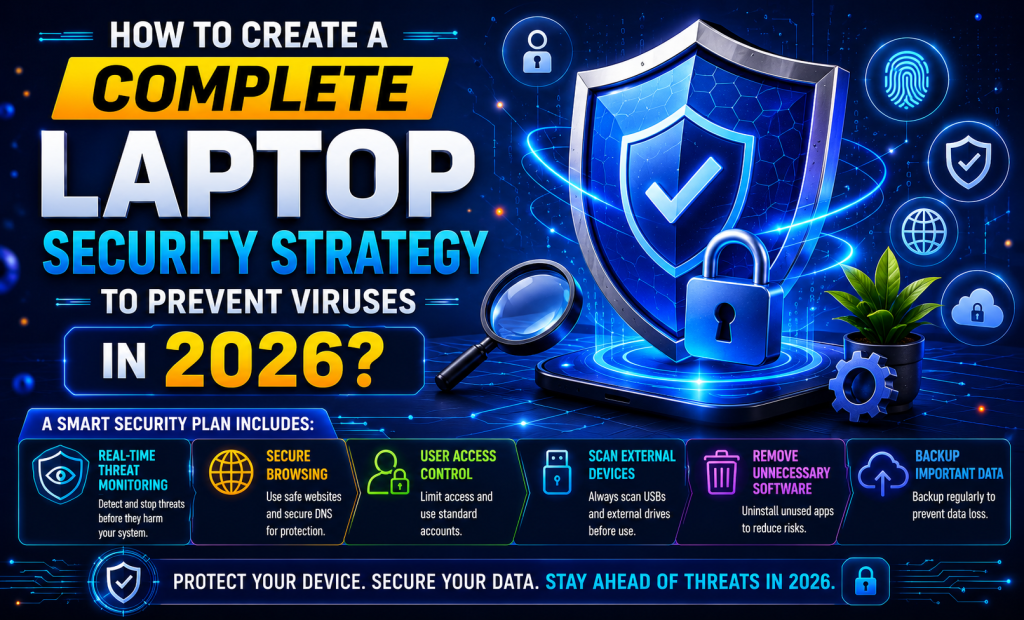
The most effective approach is a layered security strategy that includes antivirus software, system updates, strong passwords, multi-factor authentication, secure browsing habits, and regular backups.
- How often should I scan my laptop for viruses?
Answer:
You should enable real-time protection and perform a full system scan at least once per week. Additional scans are recommended after downloading files or clicking suspicious links.
- Can antivirus software stop all viruses?
Answer:
No. While antivirus software provides strong protection, no solution can guarantee 100% security. Combining antivirus protection with safe online behavior offers the best defense.
- Why are software updates important for laptop security?
Answer:
Updates fix security vulnerabilities that cybercriminals may exploit. Keeping your operating system and applications updated helps protect against the latest threats.
- What should I do if my laptop becomes infected with a virus?
Answer:
Disconnect from the internet immediately, run a full antivirus scan, remove suspicious software, change passwords, restore files from backups if necessary, and seek professional IT support if the issue persists.