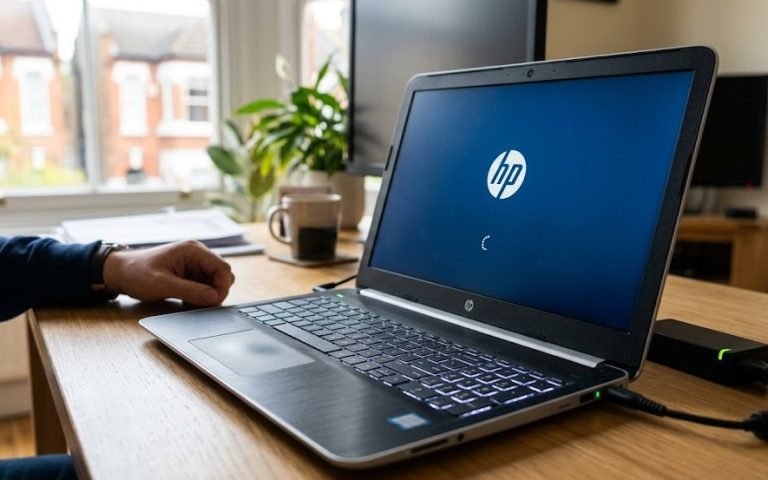
If your HP laptop turns on but will not get past the HP logo, it usually means the machine is powering up but Windows is failing to complete startup. That can happen after a bad update, corrupted startup files, a driver problem, a storage or boot-device fault, BIOS/UEFI issues, or another hardware problem. HP and Microsoft both recommend starting with the simple checks first, then moving to diagnostics and recovery tools only if needed.
This guide is for HP laptops running Windows. If the laptop contains important work files, family photos, or university documents, avoid endless forced restarts. If you hear clicking from the drive, see 3F0 boot device not found, or get a failure code in HP Diagnostics, stop there and have the laptop checked properly. Those signs usually point to a deeper storage or hardware issue rather than a minor Windows glitch.
1. Start with the basics
Shut the laptop down, unplug every non-essential accessory, and leave only the charger connected. Remove USB sticks, SD cards, printers, docking stations, external monitors, and anything else attached to the laptop. HP and Microsoft both recommend stripping the system back like this because accessories and external boot devices can interfere with normal startup.
Then perform a proper power reset. On many HP laptops, the safest first step is to disconnect power, hold the power button for around 15 seconds, reconnect the charger, and try again. If your model has a removable battery, remove it first and then do the same reset. HP uses this process across several startup and power-fault guides because it can clear residual charge and reset a hung startup state.
2. Rule out a screen problem
Sometimes the laptop is not truly stuck at the HP logo, the real issue is the display output. Microsoft recommends pressing Windows + Ctrl + Shift + B to reset the graphics driver. If it works, you may hear a beep or see the screen flicker. It is also worth disconnecting any external screen and cycling display mode with Windows + P in case the laptop is sending video to the wrong display.
3. Run HP Hardware Diagnostics before guessing
If the HP logo appears but Windows will not load, HP’s built-in diagnostics are one of the most useful next steps. Turn the laptop on and tap Esc repeatedly, then press F2 to open HP PC Hardware Diagnostics UEFI. Start with System Tests > Fast Test. HP says the Fast Test performs a short hardware check, and you can follow with the Extensive Test if needed. If a part fails, write down the failure ID or error code. That code is often the fastest route to the right repair.
4. Use Windows Recovery if startup is broken
If the hardware tests pass, the next step is Windows Recovery Environment. Microsoft says Windows can enter Recovery automatically after repeated failed starts, and you can also force it by interrupting startup twice: turn the laptop on, wait for the Windows or manufacturer logo, then hold the power button to force shutdown before Windows finishes loading. On the third start, Windows should load Recovery.
Once you are there, try Troubleshoot > Advanced options > Startup Repair first. Microsoft says Startup Repair can fix damaged system files, corrupted boot configuration data, incompatible drivers, and other startup-related problems. If the issue began after a recent Windows update, Uninstall Updates in the same menu is also worth trying. If BitLocker is enabled, Windows may ask for your recovery key before using some repair tools.
If Startup Repair does not help and the drive passes diagnostics, Reset this PC is the next software option. Windows Recovery includes an option to reset the computer while either keeping or removing personal files, so it can be a useful last resort before a full reinstall.