Is your MacBook permanently tethered to the wall? A dying battery isn’t just an annoyance it’s a ticking clock for your hardware.
You bought a MacBook Pro for its power, portability, and premium design. But when your battery degrades, that high-end machine essentially becomes a very expensive desktop. If your battery drains in a matter of hours, unexpectedly shuts down at 20%, or is displaying the dreaded “Service Recommended” warning, it is time for a professional intervention.
Don’t wait weeks for an appointment at the Apple Store. As London’s elite tech concierge, our certified Mac repair specialists bring the repair lab directly to your home or office, replacing your battery on the spot with zero data loss.
Here is what you need to know about your failing MacBook battery and why replacing it immediately is critical.
Replacing a faulty battery is a common repair in MacBook Air and MacBook Pro models, especially when the device begins showing signs of battery drain, overheating, or sudden shutdowns. At Geeks Callout, our technicians regularly perform MacBook battery replacement and MacBook repair services in London, using professional tools and safe disassembly procedures.
Step 1 – Removing the Bottom Cover
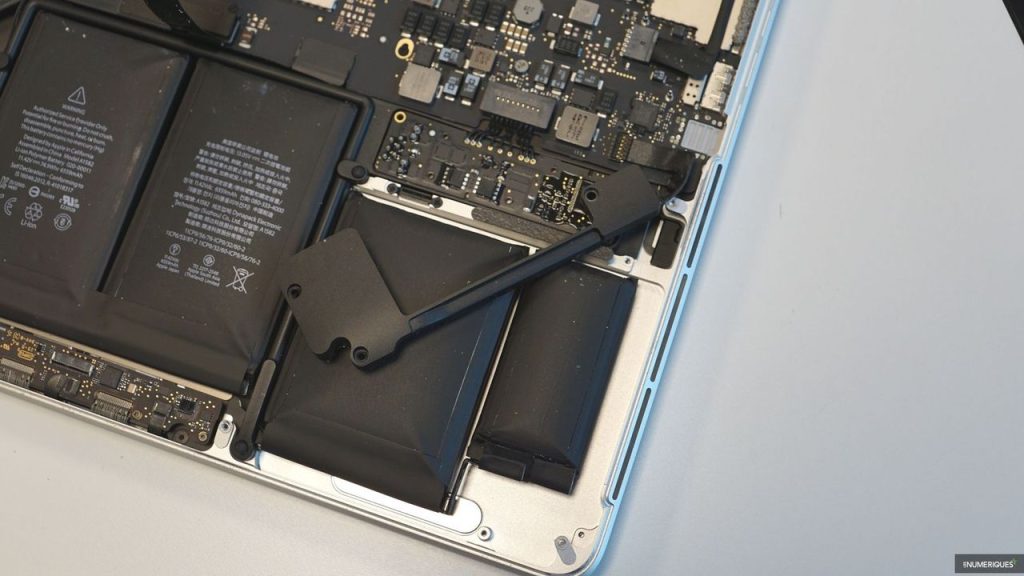
The first step in a MacBook battery replacement is removing the aluminium bottom cover. Using the correct precision screwdriver (Step 1), carefully remove the screws securing the bottom panel of the MacBook. Apple’s design allows relatively easy access to internal components once the cover is removed. After lifting the bottom cover, the MacBook logic board (Step 2), battery, speakers, and connectors become visible, allowing the repair process to begin.
Step 2 – Disconnecting Internal Connectors
Before removing the battery, several internal connectors must be safely disconnected. These connectors (Step 3) are responsible for communication between the logic board and other MacBook components. The first connector is typically located near the top of the battery and connects directly to the logic board. The second cable connects the trackpad to the logic board. Using a plastic spudger or precision tool, gently disconnect these cables to avoid damaging sensitive components.
Step 3 – Preparing for Battery Removal
To safely remove the battery, the MacBook Pro speakers (Step 5) may need to be loosened. This usually requires removing a few screws holding the speakers in place. The speakers do not need to be completely detached; gently moving them aside provides enough space to access the battery safely. Once the speakers are loosened, the MacBook battery can be removed and replaced with a new high-quality battery, restoring the laptop’s performance and battery life.