Laptop fan noise is one of those problems people often ignore at first. The laptop still turns on, the screen works, and everything may look normal, but the fan keeps running loudly, even when you are not doing much.
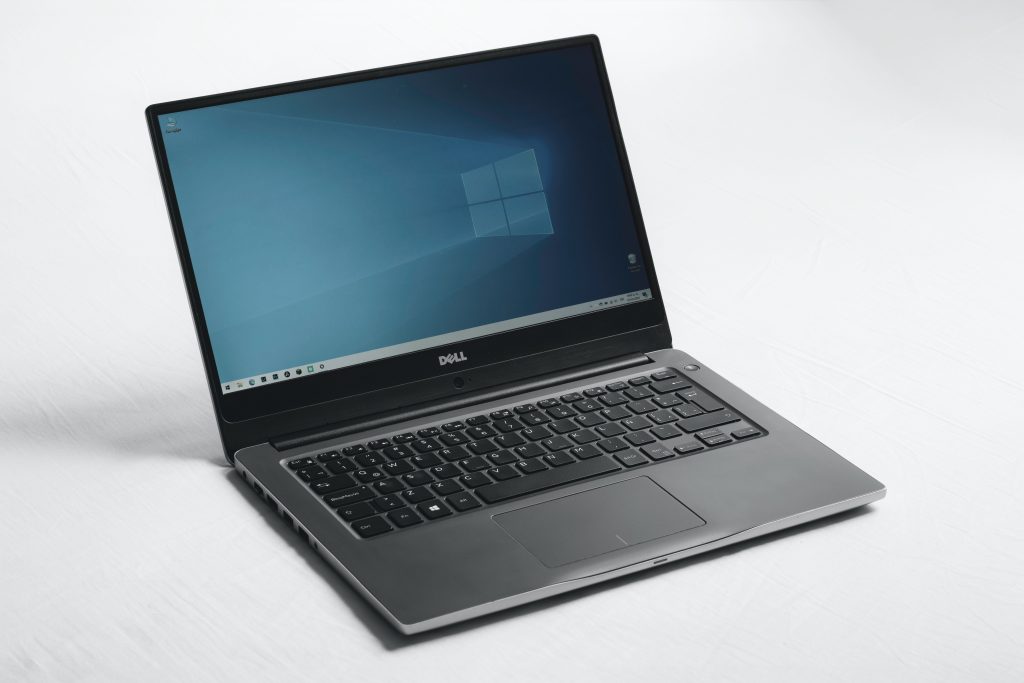
That was exactly the issue with a Dell laptop we recently repaired for a customer based near Notting Hill, London. The laptop was used for work, and the customer needed it back quickly for Monday morning. What first looked like a noisy fan problem turned out to be a combination of a failed cooling fan and dried thermal paste, both of which were causing the laptop to overheat.
This is a real repair case from Geeks Callout London, and it shows why a noisy laptop fan should not always be dismissed as “just dust”.
The Problem: Loud Fan Noise Even During Light Use
The customer contacted us because their Dell laptop fan was making a loud, unusual noise. The laptop did not need to be under heavy load for the fan to become annoying. Even during light use, or while the machine was sitting idle, the fan sounded as though it was working too hard.
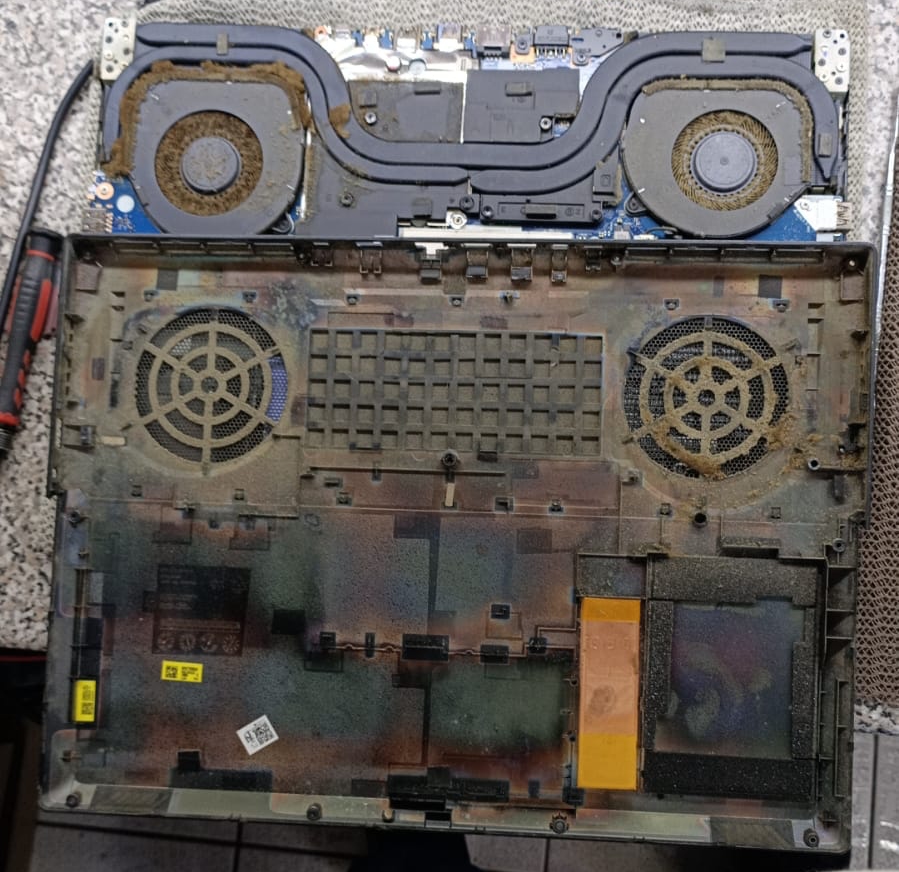
A noisy fan can happen for several reasons. Sometimes it is caused by dust inside the vents. Sometimes, pet hair, especially cat or dog hair, gets trapped in the cooling area and blocks airflow. In older laptops, the fan itself can wear out and start grinding, rattling or failing completely.
With Dell and HP laptops, we often see fan noise after months or years of regular use. It does not always mean the whole laptop is faulty, but it does mean the cooling system needs to be checked properly.
Why Fan Noise Should Not Be Ignored
A laptop fan is not just there for comfort. It helps remove hot air from inside the laptop and keeps important components at a safe temperature.
If the fan is blocked, damaged or not spinning properly, heat can build up around the processor, motherboard and other internal parts. Over time, this can lead to:
-
slow performance
-
sudden shutdowns
-
overheating warnings
-
noisy fan behaviour
-
damage to internal components
-
reduced laptop lifespan
Many customers only notice the noise, but the real risk is laptop overheating. That is why we do not simply replace the fan and send the laptop back without testing temperatures properly.
Collection and Diagnosis
The customer needed the laptop repaired over the weekend because it was a work device. We arranged collection and received the laptop at our lab around midday on Friday.
Because the time window was short, our engineer started the diagnosis straight away. The first step was to check whether the fan noise was caused by dust, blocked vents, a loose part or an actual fan failure.
After running diagnostics and opening the laptop for inspection, we found the main issue: the cooling fan was completely dead. It was not simply noisy, it had failed internally. The fan motor was no longer responding correctly, which meant the laptop was not able to cool itself as it should.
This explained the loud fan behaviour and the overheating symptoms.
The Repair: Dell Laptop Fan Replacement
Once we confirmed the fan had failed, we replaced it with a new compatible fan. This was necessary because a faulty fan cannot reliably move hot air out of the laptop.
A damaged fan can sometimes spin unevenly, make a grinding sound, run too fast, run too slowly or stop completely. In this case, replacement was the right repair.
After fitting the new fan, the noise problem improved, but our testing showed something else still needed attention.
Further Testing Found Overheating
After the fan replacement, the laptop was no longer making the same loud noise, but the fan was still running faster than expected while the laptop was not doing much.
That told us the laptop was still getting too hot.
We always test repaired laptops properly before returning them, especially when the repair is connected to cooling. Using temperature monitoring software, including RealTemp-style checks, we confirmed that the CPU temperature was still higher than it should have been.
The next issue was the thermal paste.
Dried Thermal Paste Was Making the Laptop Run Hot
Thermal paste sits between the processor and the cooling system. Its job is to help transfer heat away from the CPU.
Over time, thermal paste can dry out, crack or lose effectiveness. When that happens, the fan may work harder, but the heat still does not move away from the processor properly. This can make the laptop run hot even after the fan has been replaced.
In this Dell laptop, the thermal paste had dried out and needed replacing.
Our engineer cleaned the old paste carefully and applied fresh thermal paste correctly. This allowed heat to transfer more efficiently again and helped the new fan do its job properly.
Final Testing: Stable Temperatures and Normal Fan Behaviour
After replacing the fan and applying fresh thermal paste, we tested the laptop for several hours.
This step is important. A laptop may appear fixed after a short test, but cooling issues can return once the system warms up properly. We checked fan behaviour, CPU temperature and general stability to make sure the fault had genuinely been resolved.
After testing, the Dell laptop was running normally again, with temperatures settling around 30°C to 45°C during normal use.
The fan was no longer making the loud noise, and it was not constantly running at full speed while the laptop was idle.
Returned to the Customer the Same Day
Although we originally had the weekend to complete the repair, the laptop was repaired, tested and ready to go by Friday evening.
This was a good outcome for the customer because the laptop was needed for work on Monday. Instead of waiting several days or replacing the laptop, the customer had their working device back quickly, with the cooling issue properly fixed.
What This Repair Shows
This case is a good reminder that laptop fan noise can have more than one cause.
In this Dell laptop, the fan itself had failed, but the dried thermal paste was also contributing to overheating. If we had only replaced the fan without checking temperatures, the laptop may still have run hot and the customer could have faced the same problem again.
A proper repair should include diagnosis, part replacement where needed, temperature checks and final testing.
Common Signs Your Laptop Cooling System Needs Attention
You may need a fan or overheating check if your laptop shows any of these signs:
-
loud fan noise during light use
-
fan running constantly while idle
-
laptop getting hot underneath
-
sudden shutdowns
-
slow performance after a few minutes
-
overheating warnings
-
rattling or grinding fan sound
-
hot air not coming out of the vents
-
laptop freezing during normal use
These symptoms are especially common in older laptops, work laptops, gaming laptops and devices used in dusty environments.
Can Dust or Pet Hair Cause Laptop Fan Noise?
Yes. Dust and pet hair are very common causes of overheating and noisy fan behaviour.
Cat or dog hair can get pulled into the vents and cooling area, especially if the laptop is used on a sofa, bed, carpet or near pets. Once the airflow is restricted, the fan has to work harder to cool the laptop.
However, not every noisy fan is caused by dust. Sometimes the fan bearing or motor fails, as it did in this Dell laptop. That is why opening and checking the device properly is important.
How to Reduce Laptop Overheating
To help your laptop stay cooler:
-
avoid using it on beds, duvets or soft surfaces
-
keep vents clear
-
shut the laptop down properly when not in use
-
avoid blocking airflow with cases or covers
-
clean dust regularly
-
get the fan checked if it starts making unusual noise
-
replace thermal paste if the laptop is older or running hot
-
do not ignore sudden shutdowns or overheating warnings
Good maintenance can extend the life of the laptop and prevent more expensive repairs later.
Dell Laptop Fan Noise Repair in London
At Geeks Callout London, we help customers with noisy laptop fans, overheating laptops, fan replacement, thermal paste renewal, motherboard-level diagnosis and general hardware repairs.
This Dell laptop repair near Notting Hill was a good example of how a proper diagnosis can save time and prevent further damage. The customer’s laptop was collected, repaired, tested and returned quickly, with the fan noise resolved and temperatures back to normal.
If your Dell, HP, Lenovo, ASUS, Acer or other laptop is making a loud fan noise or running hot, it is worth getting it checked before the issue becomes more serious.