Repair The Error of Windows Firewall

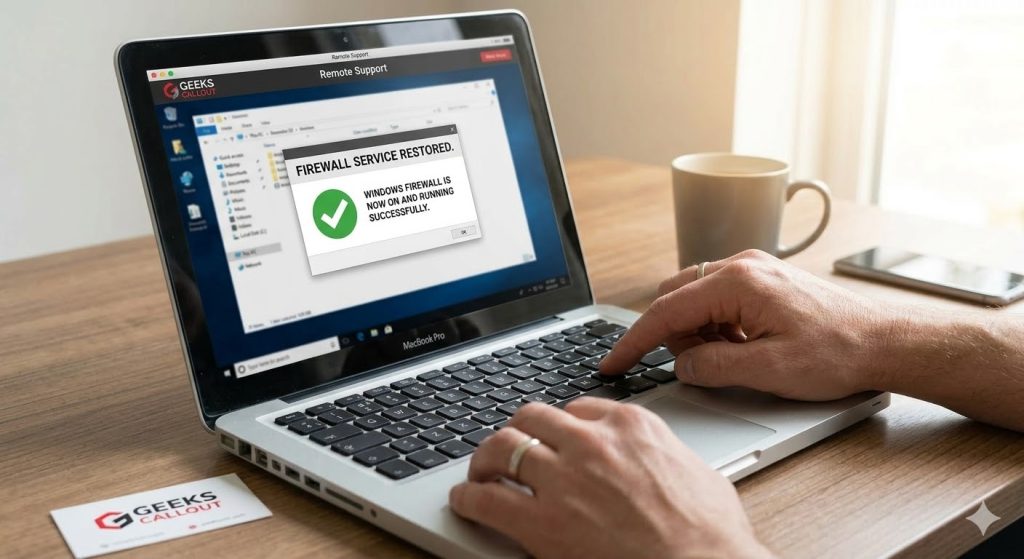
Computer is an intelligent device, though the errors are common in the system if it is frequently used. If you are having error with firewall, let say you are not able to on Windows Firewall then this short note is helpful for you. The major error that occurs about the firewall is “Service is Not Running”.

If you try to start the Firewall service, another message will be displayed such as “Windows could not start …….. Computer”.

Some general tips that can help you to fix this error:

  1. Run SFC scan, there are chances the windows self can solve the error. Type c:\ SFC /SCANNOW on command prompt and press the Enter key. Now SFC will start the scanning and if the error is identified then Windows will solve it automatically. You have to login with administrator ID and then run this command.
  2. If you have admin rights then open the registry editor by typing “RegEdit” on command prompt. In case you are not having admin rights but you have admin User ID and password then search the RegEdit in primary drive and right click on file. There you will get the option “open with Administrator”. Enter the password of administrator and registry editor will be opened instantly. Changes in any value in registry can affect the computer. Don’t forget to export or backup the registry before making any changes. Type “REG EXPORT” command on command prompt of Win-7 to export registry file on different location. For firewall option you need to backup following entries of registry:
    1. HKM\SYSTEM\CurrentControlSet\Services\SharedAccess\Epoch
    2. HLM\SYSTEM\CurrentControlSet\Services\SharedAccess\Parameters\FirewallPolicy
    3. HLM\SYSTEM\CurrentControlSet\Services\SharedAccess\Defaults\FirewallPolicy
    4. HLM\SYSTEM\CurrentControlSet\Services\Dhcp
    5. HLM\SYSTEM\CurrentControlSet\Services\Dhcp\Configurations

Here HLM is HKEY_LOCAL_MACHINE key of registry editor. Once you are on the mentioned entries, click on key on the right panel. Click permissions and click Add tab. Select “Enter the object names and type “NT SERVICE\mpssvc” entry.

These general tips will enable your firewall services and you can protect your system from external attacks.

Call us now for free consultation and advice related to IT.

0203 002 54820203 290 5190

Call Now Button