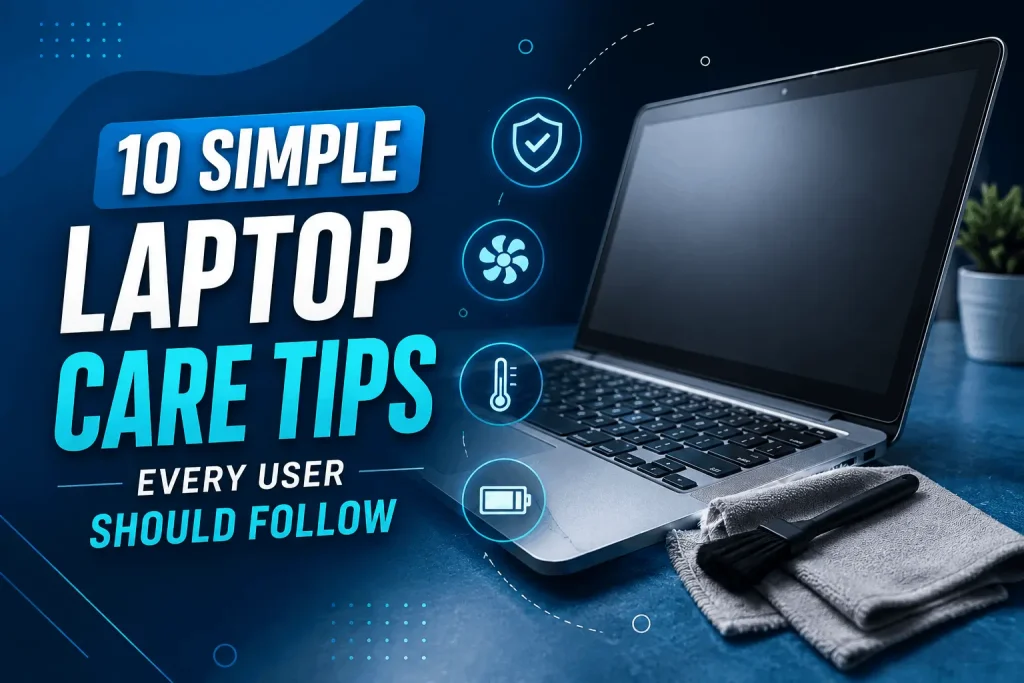
A laptop is an essential tool for work, study, communication, entertainment, and everyday tasks. Over time, however, dust, dirt, unnecessary files, heat, outdated software, and poor maintenance can affect its performance. A laptop that once started quickly may become slow, noisy, or unusually hot.
The good news is that regular laptop cleaning and maintenance can help keep your device running smoothly and may extend its useful life. You do not always need expensive upgrades or complicated repairs. Simple maintenance habits, performed safely and consistently, can make a noticeable difference.
If you are looking for professional laptop repair and maintenance services in London, Geeks Callout provides support for customers in areas including Feltham, Hounslow, Hayes, and Chertsey.
Why Regular Laptop Cleaning and Maintenance Matters
Laptops contain several components that generate heat during normal use, including the processor, graphics hardware, storage drive, and other internal components. Cooling fans and vents help move this heat away from the system.
When dust builds up around vents and cooling components, airflow can become restricted. This may cause the laptop to run hotter and make the cooling fan work harder.
Regular maintenance can help you:
- Improve overall laptop performance
- Reduce overheating
- Keep cooling vents clear
- Reduce unnecessary fan noise
- Free up storage space
- Improve startup times
- Protect important files
- Reduce the risk of avoidable hardware problems
- Extend the useful life of your laptop
Laptop maintenance should include both physical cleaning and software maintenance. Looking after only one side may not be enough.
1. Turn Off and Unplug Your Laptop Before Cleaning
Safety should always come first.
Before physically cleaning your laptop, shut it down completely and disconnect the charger and other accessories. If your laptop has a removable battery, you can consider removing it according to the manufacturer’s instructions.
Never clean a powered-on laptop with liquids or attempt to open internal components while the device is running.
Allow the laptop to cool down before cleaning, especially if it has been running for several hours.
A few minutes of preparation can reduce the risk of accidental damage.
2. Clean the Laptop Screen Carefully
The screen is one of the easiest areas to collect fingerprints, dust, and smudges.
To clean your laptop display:
- Turn off the laptop.
- Use a clean, soft microfiber cloth.
- Gently wipe the screen.
- Avoid applying excessive pressure.
- If necessary, use a screen-safe cleaning solution according to its instructions.
- Never spray liquid directly onto the display.
Avoid household cleaners that are not designed for electronic screens. Excess moisture can potentially enter the edges of the display and cause damage.
Cleaning the screen regularly improves visibility and keeps your laptop looking professional.
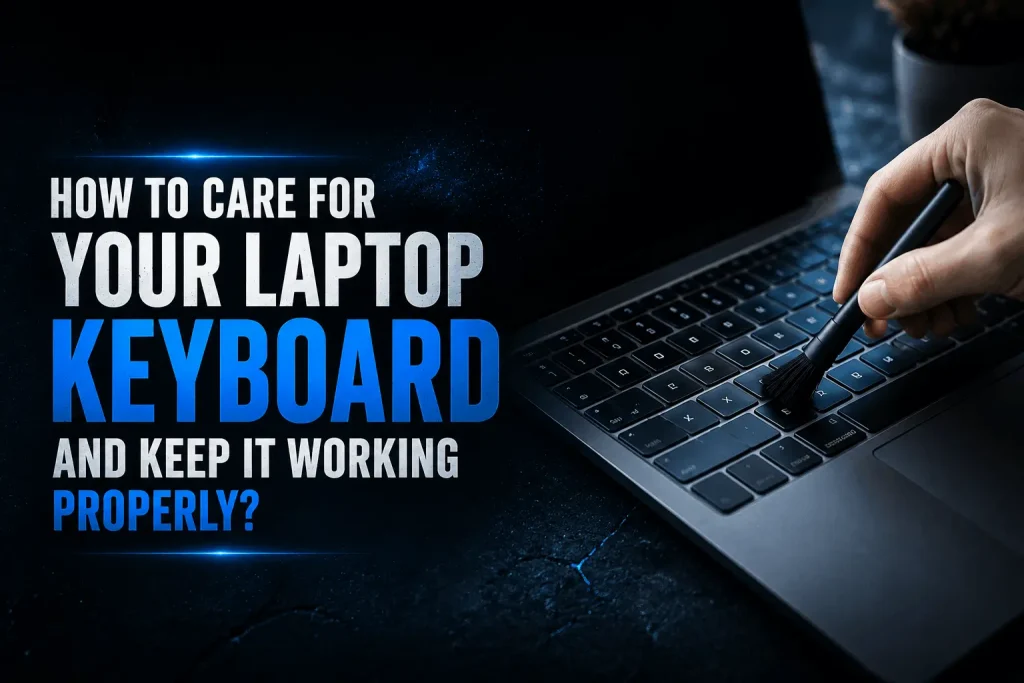
3. Clean the Keyboard and Touchpad
Keyboards can collect dust, food particles, hair, and other debris. Since we use the keyboard frequently, keeping it clean is an important part of laptop maintenance.
Start by turning off the laptop and disconnecting it from power. You can gently tilt the laptop or use appropriate compressed air to help remove loose debris.
Use a microfiber cloth to clean the surface of the keyboard and touchpad.
Avoid pouring or spraying liquid directly onto the keyboard. Even a small amount of liquid can cause serious problems if it reaches internal electronic components.
If individual keys are sticking, do not force them off unless you know the correct procedure for your laptop model.
4. Keep Air Vents Clear
Overheating is one of the common reasons laptops become slow or uncomfortable to use.
Check the laptop’s ventilation openings regularly. Dust can accumulate around these areas and restrict airflow.
Never place your laptop on soft surfaces such as:
- Beds
- Blankets
- Sofas
- Cushions
- Thick carpets
These surfaces can block ventilation openings.
Instead, use your laptop on a firm, flat surface whenever possible. If you frequently use your laptop for demanding tasks, a suitable laptop stand can also help improve airflow around the device.
5. Remove Dust From External Vents
External dust can often be removed without opening the laptop.
Use a soft brush or suitable compressed air carefully around the ventilation openings. Follow the instructions supplied with any cleaning product you use.
Do not insert sharp objects into vents, ports, or openings. Avoid aggressive cleaning methods that could damage delicate components.
If the laptop is heavily clogged with dust or is overheating despite external cleaning, professional internal cleaning may be more appropriate.
6. Keep Your Laptop Cool
Temperature has a significant impact on laptop performance and hardware longevity.
A laptop may become hotter when running applications that place heavy demands on the processor or graphics hardware. Gaming, video editing, large software projects, and other intensive activities can generate substantial heat.
To help manage temperature:
- Keep ventilation openings unobstructed.
- Avoid using the laptop on soft surfaces.
- Keep the room reasonably cool.
- Clean dust from external vents.
- Avoid leaving the laptop inside a hot car.
- Give the laptop adequate airflow during intensive tasks.
If your laptop becomes extremely hot, frequently shuts down, or the fan constantly operates at a high speed, it may require professional inspection.
7. Free Up Unnecessary Storage Space
A nearly full storage drive can make laptop management more difficult and may affect certain operations.
Review your files regularly and remove data you no longer need. Large downloads, duplicate files, temporary files, old installation packages, and unused media can consume significant storage.
Consider organizing your files into folders and moving important large files to appropriate external or cloud storage where suitable.
Before deleting anything, make sure you know what the file is and whether you still need it.
Never delete system files simply because they look unfamiliar.
8. Remove Unused Applications
Over time, laptops often accumulate applications that are no longer used.
Review your installed programs and uninstall software that you genuinely do not need. Unused applications can consume storage and, in some cases, run background processes.
However, avoid removing software if you are unsure about its purpose. Some applications and drivers are required for the operating system or laptop hardware to function correctly.
When in doubt, research the program or ask a qualified technician before uninstalling it.
9. Manage Startup Applications
Too many programs launching when your laptop starts can increase boot time.
Review your startup applications and disable programs that do not need to launch automatically.
For example, some applications may only be needed occasionally and do not need to run immediately after startup.
Be careful when changing startup settings. Security software, hardware utilities, and important system services may need to remain enabled.
Reducing unnecessary startup applications can help your laptop reach the desktop more quickly.
10. Keep Your Operating System Updated
Software updates are an important part of laptop maintenance.
Operating system updates can include security improvements, bug fixes, compatibility changes, and performance-related improvements.
Enable automatic updates where appropriate and restart the laptop when required.
Do not repeatedly postpone important updates for long periods without a reason.
Keeping your operating system current can help protect your laptop and improve compatibility with modern software.
11. Update Drivers Carefully
Drivers allow the operating system to communicate correctly with hardware components such as graphics adapters, network devices, audio systems, and other hardware.
Outdated or corrupted drivers can sometimes cause performance problems, connectivity issues, crashes, or hardware-related errors.
Only install drivers from trusted and appropriate sources. Avoid downloading unknown driver packages from suspicious websites.
If you are experiencing repeated hardware problems after an update, professional troubleshooting can help identify whether the issue is software or hardware related.
12. Protect Your Laptop From Malware
Malware can negatively affect laptop performance and create security risks.
Use reputable security software and keep it updated. Avoid opening suspicious attachments, downloading unknown programs, or clicking questionable links.
If your laptop suddenly becomes slow, displays unexpected advertisements, opens unfamiliar pages, or behaves unusually, malware should be considered as one possible cause.
A security scan can help identify potential threats.
13. Keep Your Files Backed Up
Maintenance is not only about making a laptop faster. Protecting your data is equally important.
Important documents, photographs, business files, school work, and other valuable data should be backed up regularly.
You can use an appropriate external storage device or cloud-based backup solution.
A backup becomes especially important before performing major repairs, reinstalling an operating system, replacing a storage drive, or making significant changes to the laptop.
Remember: cleaning and maintenance cannot prevent every hardware failure.
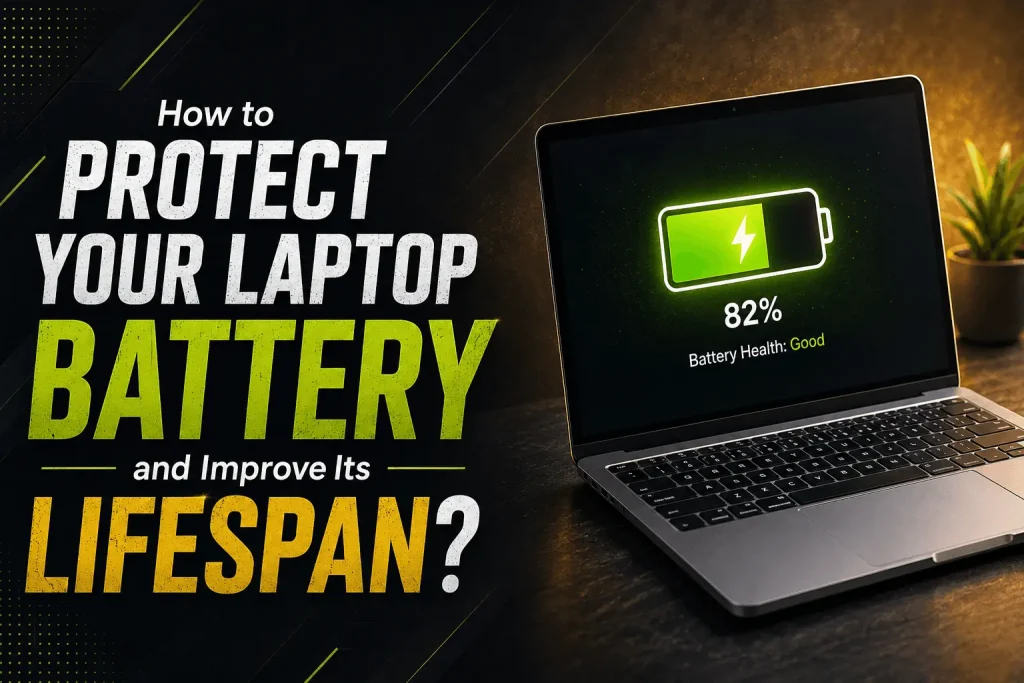
14. Look After the Laptop Battery
Laptop batteries naturally lose capacity over time.
Good battery habits can help you get the best practical performance from your device.
Avoid exposing your laptop to extreme temperatures. Keep the charging port and cable in good condition, and use compatible charging equipment.
If the battery becomes swollen, unusually hot, physically damaged, or behaves abnormally, stop using the device and seek professional assistance.
Do not attempt to puncture, dismantle, or physically modify a swollen battery.
15. Clean Your Laptop Ports
USB ports, charging ports, audio ports, and other openings can collect dust and debris.
Inspect them occasionally and keep them free from excessive dirt.
Never force a connector into a port. If a USB device or charger no longer fits correctly, investigate the problem rather than applying additional pressure.
A damaged charging port can create intermittent charging problems and may require professional repair.
16. Do Not Ignore Warning Signs
Regular cleaning can prevent some problems, but it cannot fix every hardware issue.
You should consider professional laptop repair if you notice:
- Frequent overheating
- Unexpected shutdowns
- Very loud or unusual fan noise
- A laptop that will not turn on
- Charging problems
- A damaged screen
- Keyboard or touchpad failure
- Slow performance despite regular maintenance
- Repeated system crashes
- Strange noises from inside the laptop
- Battery swelling
- Broken hinges or physical damage
Trying to repair complex internal hardware without the appropriate tools or experience can make the problem worse.
Professional Laptop Repair and Maintenance in London
For customers in and around London, having access to reliable laptop support can make laptop problems much easier to manage.
Geeks Callout provides laptop-related services for customers across areas including Feltham, Hounslow, Hayes, and Chertsey.
Professional support can be useful when a laptop requires internal cleaning, hardware diagnostics, component replacement, operating system troubleshooting, data-related assistance, or other technical work.
If basic cleaning and software maintenance do not resolve your laptop’s performance problems, getting the device checked can help identify the underlying issue.
How Often Should You Clean and Maintain Your Laptop?
There is no single schedule that works for every laptop.
A laptop used in a clean office environment may require less frequent physical cleaning than a device used in a dusty environment.
As a general approach:
- Weekly: Wipe the screen, keyboard, and touchpad when needed.
- Monthly: Review downloads, unused files, applications, and startup programs.
- Every few months: Check vents, ports, storage space, updates, and backups.
- As needed: Seek professional help for overheating, hardware faults, charging problems, or physical damage.
Regular small maintenance tasks are usually easier than waiting until the laptop develops a serious problem.
Frequently Asked Questions
1. How often should I clean my laptop?
You should clean the external surfaces of your laptop whenever dust, fingerprints, or debris become noticeable. Check the ventilation areas every few months and consider professional internal cleaning if the laptop becomes unusually hot or the cooling fan becomes excessively noisy.
2. Can cleaning make my slow laptop faster?
Cleaning dust from ventilation areas can help with overheating-related performance problems. Software maintenance, such as removing unnecessary files and applications, managing startup programs, and installing updates, can also improve the overall experience. However, a slow laptop may have an underlying hardware or software problem that requires professional diagnosis.
3. Can I use household cleaning products on my laptop screen?
It is safer to use a soft microfiber cloth and a cleaning solution specifically intended for electronic displays. Avoid spraying liquid directly onto the screen and do not use excessive moisture.
4. Why does my laptop get hot and make a loud fan noise?
A loud fan can indicate that the laptop is working hard or that its cooling system is struggling to remove heat. Dust buildup, blocked ventilation, demanding applications, or an internal cooling problem can contribute to excessive heat. If the problem happens frequently, professional inspection may be necessary.
5. When should I contact a professional laptop repair service?
You should consider professional assistance if your laptop repeatedly overheats, shuts down unexpectedly, fails to charge, has screen or keyboard problems, makes unusual noises, crashes frequently, or remains extremely slow after basic maintenance. Professional diagnostics can help identify the actual cause and prevent further damage.