If your email has moved to Greenby and Greenby has sent you a welcome email or dashboard instructions with different server settings, use the Greenby-provided details instead.
Some older Plusnet customers may have email addresses ending in domains such as:
- plus.com
- plus.net
- force9.co.uk
- free-online.net
If you are using one of these older domains, the server name may be slightly different. Always check the exact details given by Plusnet or Greenby for your account.
IMAP or POP: Which One Should You Use?
For most customers in London using email on more than one device, IMAP is usually the better choice.
IMAP keeps your emails on the server and syncs them across your devices. That means if you read an email on your Mac, it should also show as read on your phone or tablet.
POP downloads emails to one device. Some older customers still use POP because they have used it for years, but it can cause confusion if you check email on several devices.
For most home users, business owners and professionals, we normally recommend IMAP unless there is a specific reason to keep POP.
How to Fix Plusnet or Greenby Email in Apple Mail on Mac
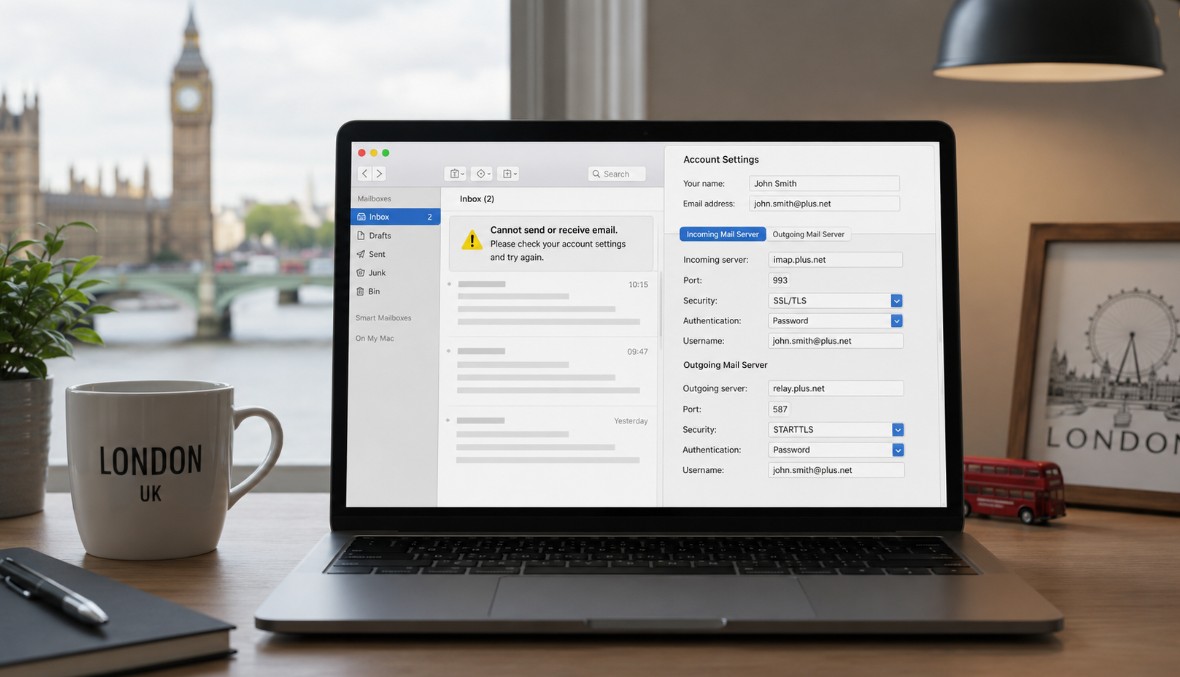
If you use Mac Mail and your Plusnet email has stopped working after the Greenby move, follow these steps carefully.
Step 1: Open Mail Settings
Open Mail on your Mac.
Then go to:
Mail > Settings > Accounts
Select your Plusnet or Greenby email account from the left-hand side.
Step 2: Check Incoming Mail Settings
Click the account and check the incoming mail settings.
For IMAP, the incoming server is usually:
imap.plus.net
Use:
- Port: 993
- Security: SSL/TLS
- Username: your email address or mailbox username
- Password: your email password
If you have Greenby-specific settings from your welcome email, use those instead.
Step 3: Check Outgoing Mail Server
Many email problems are caused by the outgoing server, especially when customers can receive emails but cannot send them.
In Mac Mail, go to:
Mail > Settings > Accounts > Server Settings
Look for Outgoing Mail Account or SMTP Server.
The outgoing server is usually:
relay.plus.net
Use:
- Port: 587
- Security: STARTTLS
- Authentication: Password
- Username: your email address or mailbox username
- Password: your email password
Make sure “Automatically manage connection settings” is switched off if Mac Mail keeps choosing the wrong settings.
Step 4: Save and Restart Mail
After changing the settings, save them and close Apple Mail completely.
Then reopen Mail and test:
- Send an email to yourself.
- Check whether it leaves the outbox.
- Check whether it arrives back in your inbox.
- Check the same email on webmail if needed.
If it sends through webmail but not Mac Mail, the problem is still likely to be the Mac Mail settings.
How to Fix Plusnet or Greenby Email in Microsoft Outlook
Outlook can be slightly more confusing because the settings are hidden in different places depending on whether you are using the classic Outlook app or the newer version.
Step 1: Open Account Settings
In classic Outlook on Windows:
Go to:
File > Account Settings > Account Settings
Select your Plusnet or Greenby email account and choose Change or Repair.
If you are adding the account again, choose:
File > Add Account
Then select manual setup if Outlook does not find the correct settings automatically.
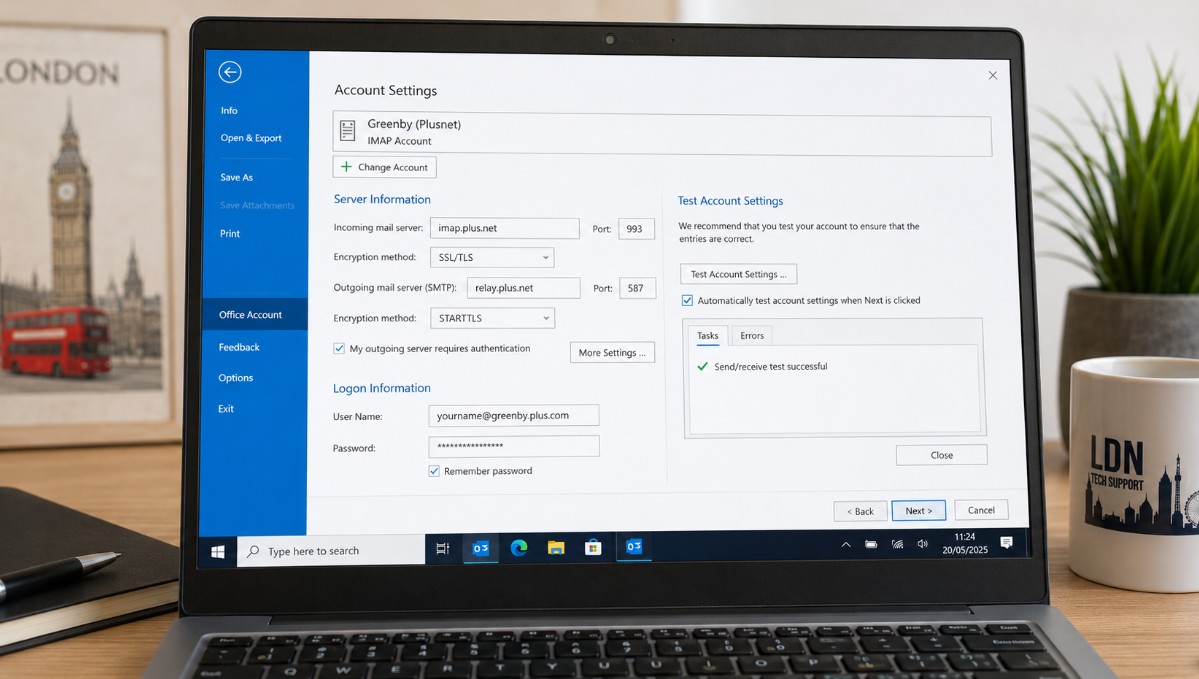
Step 2: Check Incoming Server
For IMAP, use:
- Incoming server: imap.plus.net
- Port: 993
- Encryption: SSL/TLS
For POP, use:
- Incoming server: mail.plus.net
- Port: 995
- Encryption: SSL/TLS
Use the username and password connected to your mailbox.
If Greenby has supplied different settings, follow the Greenby settings instead.
Step 3: Check Outgoing Server
For outgoing mail, use:
- SMTP server: relay.plus.net
- Port: 587
- Encryption: STARTTLS
Make sure outgoing server authentication is enabled.
In Outlook, this is often shown as:
My outgoing server requires authentication
Select:
Use same settings as my incoming mail server
This is one of the most common reasons Outlook receives emails but fails to send them.
Step 4: Test the Account
After saving the settings, Outlook may run a test.
If the incoming test passes but the outgoing test fails, check:
- SMTP server name
- SMTP port
- STARTTLS setting
- outgoing authentication
- username
- password
If Outlook keeps asking for the password, remove the saved password from Windows Credential Manager and try again.
What If Emails Receive But Do Not Send?
If you can receive emails but cannot send them, the issue is usually with SMTP.
Check these:
- outgoing server is correct
- port 587 is selected
- STARTTLS is selected
- outgoing authentication is switched on
- username and password are entered
- no old Plusnet server is still saved in the app
- antivirus or firewall is not blocking Outlook
On Mac Mail, also check that the correct SMTP server is attached to the email account. Sometimes Mac Mail keeps an old outgoing server in the list and uses that by mistake.
What If Emails Send But Do Not Receive?
If emails send but do not arrive, check:
- incoming server name
- IMAP or POP setting
- incoming port
- SSL/TLS setting
- mailbox password
- mailbox storage limit
- whether emails are going into junk or spam
- whether rules are moving emails into folders
- whether webmail receives the email
If webmail receives the message but Outlook or Mac Mail does not, the issue is with the device or email app settings.
Do Not Delete the Account Too Quickly
A lot of customers panic and delete the email account from Outlook or Mac Mail. Be careful before doing this.
If your email is set up as IMAP, deleting and re-adding the account is usually safe because emails are stored on the server.
If your email is set up as POP, deleting the account may remove locally stored emails from your computer, depending on how it was set up.
Before deleting anything, check whether your emails are safely stored in webmail or backed up.
This is especially important for customers who have used Plusnet email for many years and may have old business or personal emails stored locally.
A Real Example from St John’s Wood, London
The customer who called us from St John’s Wood NW8 was having a typical post-migration issue. His Plusnet email had moved to Greenby, and suddenly the email app stopped sending and receiving properly.
The main thing we explained was not to panic and not to keep changing random settings. The correct approach is:
- Check webmail access.
- Confirm the email password.
- Check whether the account is using IMAP or POP.
- Correct the incoming and outgoing server settings.
- Test sending to yourself.
- Check the same account on another device if needed.
Most email problems after a provider change are fixable once the right settings are applied.
When Should You Call an IT Support Engineer?
You may need professional help if:
- Outlook keeps asking for the password
- Mac Mail says it cannot connect to the server
- you are worried about losing old emails
- your account uses POP and stores emails locally
- your business email has stopped working
- email works on your phone but not your laptop
- you are unsure whether the account has moved to Greenby
- you need email fixed quickly for work
For business users, email downtime can cause missed enquiries, delayed invoices and lost communication. It is better to get the setup checked properly rather than risk losing messages.
Geeks Callout London Email Support
At Geeks Callout London, we help home users and small businesses with email problems across London, including Outlook, Mac Mail, Microsoft 365, Gmail, Plusnet, Greenby and other email providers.
We can help with:
- email sending and receiving issues
- Mac Mail setup
- Outlook setup
- Plusnet to Greenby email problems
- password and authentication issues
- IMAP and POP configuration
- email backup before account changes
- business email troubleshooting
- remote support for urgent email faults
If your Plusnet email has moved to Greenby and your Mac Mail or Outlook has stopped working, we can help you check the settings and get your email working again safely.
Frequently Asked Questions
Why has my Plusnet email stopped working?
Your Plusnet email may have stopped working because of the move to Greenby, incorrect mail server settings, password issues, authentication problems, or an outdated setup in Mac Mail or Outlook.
Do I need to change my email address after the Greenby move?
In most cases, customers can keep using the same Plusnet email address. The issue is usually with the email app settings rather than the email address itself.
Should I use IMAP or POP?
For most customers, IMAP is better because it syncs emails across devices. POP may be used by older setups, but it can store emails locally and needs more care before changing or deleting the account.
Why can I receive emails but not send them?
This is usually an outgoing SMTP issue. Check the outgoing server, port, STARTTLS setting and whether outgoing authentication is enabled.
Why does Outlook keep asking for my password?
This can happen when the saved password is wrong, the username format is incorrect, the server settings are outdated, or Outlook has stored old credentials.
Can Mac Mail be fixed without deleting the account?
Yes, in many cases the account can be repaired by updating the incoming and outgoing server settings. Deleting the account should be avoided until you know where your emails are stored.
Can Geeks Callout fix this remotely?
Yes, many email setup problems can be checked remotely, especially Outlook, Mac Mail and basic account configuration issues.