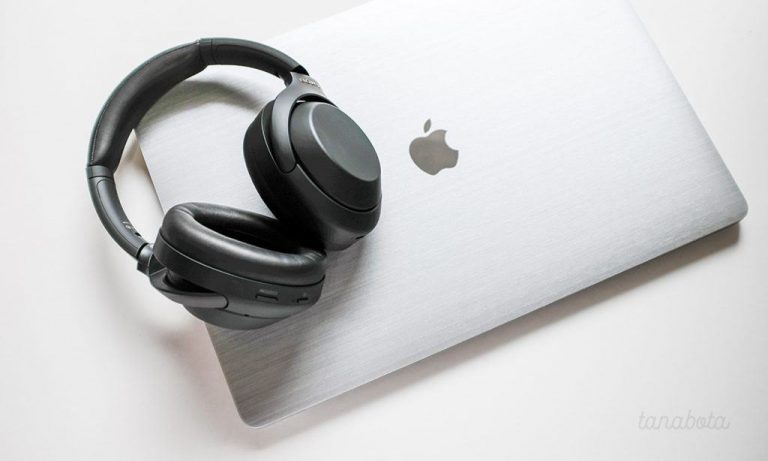
How to Pair Sony WH-1000XM4 Headphones With a MacBook
Follow these steps to connect your headphones:
1. Turn on the headphones
Press the power button on the Sony WH-1000XM4 to switch them on.
If the headphones have not been paired with another device recently, they may enter pairing mode automatically. If your MacBook is not the first device being paired, press and hold the power button for around 7 seconds until you hear a voice prompt and see the blue indicator light flashing twice repeatedly. This means the headphones are now in pairing mode.
2. Open Bluetooth settings on your MacBook
On your MacBook, open System Settings or System Preferences, then click Bluetooth.
3. Select the headphones
Wait for WH-1000XM4 to appear in the list of available Bluetooth devices. Once it appears, click Connect.
Make sure you select the exact device name WH-1000XM4. If it does not appear after about a minute, turn the headphones off and repeat the pairing process from the beginning.
4. Enter the passcode if required
If your MacBook asks for a passcode, enter:
0000
Once the pairing is successful, you should hear a voice prompt confirming that the headphones are connected.
5. Choose the headphones as the audio output device
After pairing, click the sound or speaker settings on your MacBook and select WH-1000XM4 as the output device. Your audio should now play through the headphones.
Important Things to Know
There are a few useful points to keep in mind when using Sony WH-1000XM4 headphones with a MacBook:
- The headset can be paired with up to eight devices
- It can only play audio from one connected device at a time
- Once paired, the headphones should connect automatically the next time you use them
- If you do not want automatic reconnection, turn off the headphones or disable Bluetooth on your MacBook
- If pairing is not completed within five minutes, you may need to restart the process
- If you pair the headphones with a ninth device, the oldest saved pairing information may be replaced
- If Bluetooth pairing information is deleted from either the MacBook or the headphones, you will need to pair them again from scratch
What to Do if the Headphones Are Paired but Still Not Connecting
Sometimes the headphones may appear as paired, but they still do not connect properly. If this happens, try the following:
- Press the power button on the headphones for about 2 seconds
- Open the Bluetooth settings on your MacBook
- Find WH-1000XM4 in the device list
- Hold the Control key and click on the device name
- From the menu, choose Connect
This often helps re-establish the Bluetooth connection without needing to remove and re-pair the headphones completely.