Dealing with laptop battery problems can be frustrating and disruptive, especially when your device loses charge quickly or shuts down unexpectedly. A weak battery affects productivity, interrupts your workflow, and can make even simple tasks difficult to complete without constantly searching for a charger.
If your laptop is several years old, rapid battery drain is often a sign that the battery is reaching the end of its lifespan and may need replacing. However, if your laptop is relatively new, fast battery drain can be caused by a range of settings, background processes, or hardware-related issues.
In this guide, we explain the most common reasons why your laptop battery drains quickly and share practical tips to help improve battery life and overall performance.
1. Screen Brightness
High screen brightness is one of the most common causes of fast battery drain. A bright display uses more power, even when you are not doing anything demanding on the laptop.
Quick Fix
Step 1: Click the battery icon in the Windows taskbar. If you cannot find it, open the Windows search bar and type screen brightness.
Step 2: Lower the brightness level using the slider to reduce power consumption.
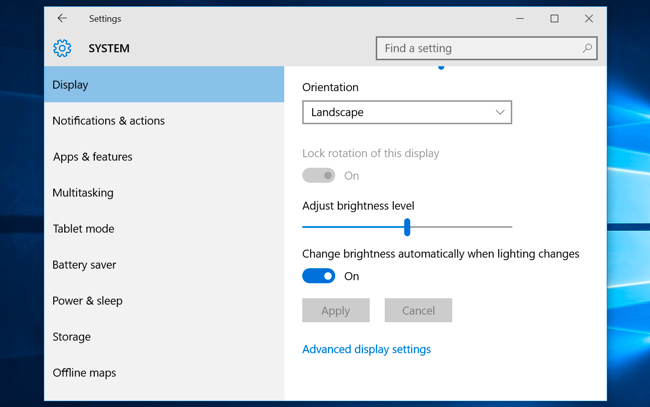
Many newer laptops also allow you to adjust brightness using the keyboard function keys. You can also go to Settings > System > Display to manage brightness manually.
2. Keyboard Backlight
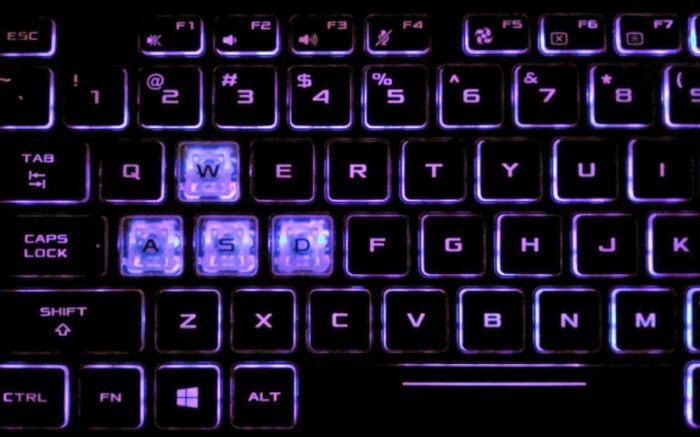
Backlit keyboards are useful when working in low light, but they can also reduce battery life if left on unnecessarily.
Quick Fix
Step 1: Open your laptop’s control centre or keyboard settings.
Step 2: Locate the Keyboard Backlight option.
Step 3: Turn it off when it is not needed.
On many laptops, this can also be controlled using the function keys on the keyboard.
3. Network Connections and Peripheral Devices
Leaving unnecessary wireless connections and external devices connected can cause your laptop battery to drain faster. Bluetooth, Wi-Fi, Ethernet, USB devices, webcams, microphones, printers, and speakers all consume power while connected.
Quick Fix for Network Connections
Step 1: Go to Settings > Network & Internet.
Step 2: Disable connections you are not currently using, such as Bluetooth or unused network adapters.
Quick Fix for Peripheral Devices
Step 1: Check the taskbar for connected devices.
Step 2: Safely disconnect any accessories you do not need, such as USB drives, printers, webcams, or external audio devices.
Reducing unnecessary connections can help extend battery life.
4. Power Settings
Incorrect power settings can also lead to excessive battery usage. If your laptop remains fully active when it is not in use, it will continue draining power in the background.
Quick Fix
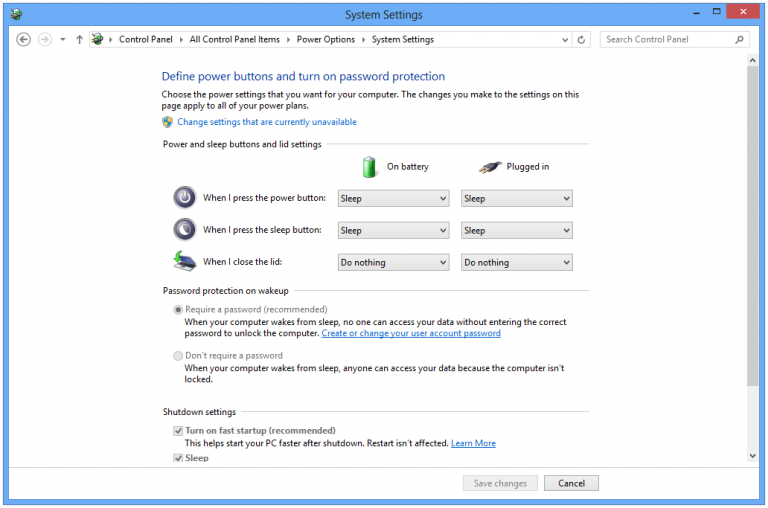
Step 1: Go to Settings > System > Power & Sleep.
Step 2: Adjust the screen timeout and sleep settings so the laptop enters sleep mode sooner when idle.
You can also choose a power-saving mode or create a custom power plan that better suits your usage.
5. Background Apps and Processes
Many apps continue running in the background even when you are not actively using them. These apps consume battery power, memory, and processing resources, which can noticeably reduce battery life.
Quick Fix
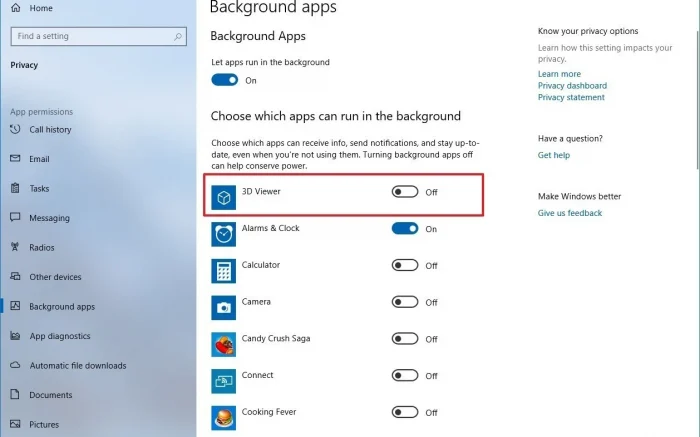
Step 1: Go to Settings > Privacy > Background Apps.
Step 2: Turn off background access for apps you do not use regularly.
Disabling unnecessary background apps can make a significant difference to battery performance.
6. Heavy Applications
Power-hungry applications such as video editing software, gaming platforms, VPNs, and design tools can place a heavy load on your laptop, causing the battery to drain much faster.
Quick Fix
Step 1: Go to Control Panel > Programs and Features or Settings > Apps.
Step 2: Review installed applications and remove any software you no longer need or rarely use.
Keeping only essential software installed can help reduce battery usage and improve overall system efficiency.
7. Optical Drive or Inserted Disc
If your laptop has a CD/DVD drive, leaving a disc inserted can sometimes affect battery life, particularly if the drive continues checking or spinning in the background.
Quick Fix
Step 1: Press the eject button on the side of the laptop to remove the disc.
Step 2: If that does not work, open This PC, right-click the optical drive, and select Eject.
Removing unused discs can help prevent unnecessary power consumption.
8. Faulty Charger or Battery
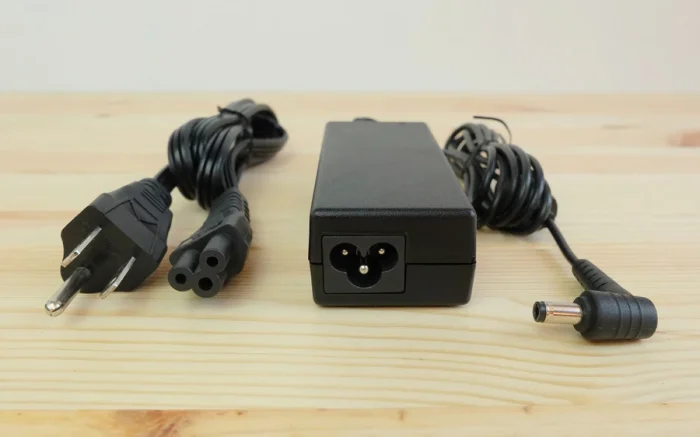
In some cases, the problem may not be software-related at all. A faulty charger, damaged charging port, or worn-out battery can prevent the laptop from charging properly. You may notice the battery icon showing plugged in, but the charge percentage does not increase.
If the laptop is still under warranty, it is best to contact the manufacturer. If it is older, the battery or charger may need to be tested and replaced.
When to Seek Professional Help
If your laptop battery continues to drain quickly after trying the steps above, there may be an underlying hardware issue. Common faults include:
- a failing battery
- a faulty charger
- motherboard charging issues
- overheating
- power management faults
A professional inspection can identify the exact cause and prevent further damage.
Need Help With a Laptop Battery Problem?
If your laptop battery is draining too quickly, not charging properly, or shutting down unexpectedly, Geeks Callout can help. Our experienced PC and laptop technicians can diagnose battery, charger, and power-related issues and recommend the most suitable repair solution.
For further assistance, contact us today and our team will be happy to help.
Author 's Profile
Aamir.M
Aamir Mehmood is a Senior IT Consultant & Technology Writer with over 15+ years of experience and one of the founders of Geeks Callout, an award-winning London-based IT support company specialising in PC, MacBook, and gaming repairs. He is recognised for delivering reliable, customer-focused IT solutions. Under his leadership, Geeks Callout has won multiple honours, including the 2023 Business Excellence Award and the 2025 SME UK Enterprise Award. Aamir also writes insightful articles to simplify complex technology, making him a trusted voice in London’s IT community.