How to Fix the Windows Firewall "Service is Not Running" Error on Your Computer or Laptop

Your computer or laptop is an intelligent device, but system errors are common with frequent use. One of the most frustrating security issues is finding yourself unable to turn on Windows Firewall.

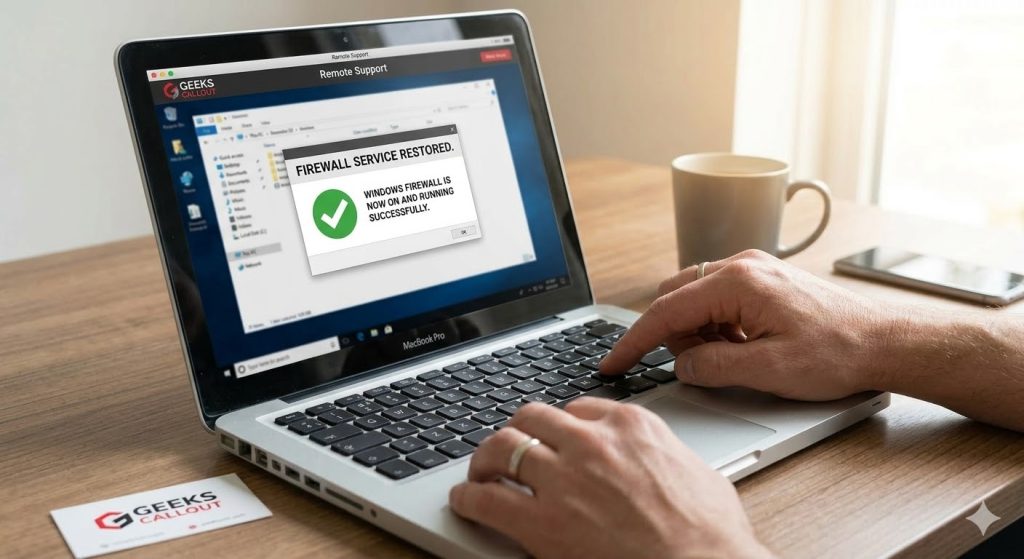
Typically, this problem triggers the error message: “Service is Not Running.” If you attempt to force-start the firewall service, you might be met with a secondary error stating, “Windows could not start the Windows Firewall on Local Computer.” Because your firewall is your first line of defense against external attacks, resolving this issue immediately is critical. Below are two proven methods to troubleshoot and fix this error.

Method 1: Run an SFC Scan to Repair Windows Files

Often, Windows can identify and solve this error automatically by scanning for corrupted system files. You can trigger this using the System File Checker (SFC).

  • Click the Start menu and type cmd.
  • Right-click on Command Prompt and select Run as administrator (you must be logged in with an Administrator ID).
  • In the command prompt window, type the following command exactly as shown and press Enter:
    sfc /scannow
  • Windows will now begin scanning your system. If it identifies the error causing the firewall issue, it will attempt to repair it automatically. Restart your computer once the scan is complete.

Method 2: Update Permissions in the Registry Editor

If the SFC scan does not resolve the issue, you may need to adjust the permissions within your system’s Registry Editor.

Important Warning: Making incorrect changes to your registry can severely affect your computer or laptop. Always back up your registry before proceeding.


Step 1: Open the Registry Editor

Open the Command Prompt as an administrator.

Type regedit and press Enter.

(Note: If you are logged into a standard account but have the admin password, search for “RegEdit” in your Windows search bar, right-click the application, choose Run as administrator, and enter the credentials.)


Step 2: Back Up Your Registry

To safely back up your registry, you can use the export feature directly in the RegEdit menu (File > Export) or type the following in your command prompt:

REG EXPORT HKLM C:\Backup\RegBackup.reg (You can change the file path to your preferred backup location).

 

Step 3: Modify the Firewall Keys

You will need to locate specific entries under the

  •  HKEY_LOCAL_MACHINE (HKLM) folder. Navigate to the following five paths:
  • HKLM\SYSTEM\CurrentControlSet\Services\SharedAccess\Epoch
  • HKLM\SYSTEM\CurrentControlSet\Services\SharedAccess\Parameters\FirewallPolicy
  • HKLM\SYSTEM\CurrentControlSet\Services\SharedAccess\Defaults\FirewallPolicy
  • HKLM\SYSTEM\CurrentControlSet\Services\Dhcp
  • HKLM\SYSTEM\CurrentControlSet\Services\Dhcp\Configurations

Step 4: Add the Necessary Permissions

For each of the five registry keys listed above, perform the following actions:

  • Right-click the folder key on the left-hand panel.
  • Select Permissions from the drop-down menu.
  • Click the Add button.
  • In the object names box, type: NT SERVICE\mpssvc
  • Click OK and ensure full control is granted.


Once you have updated all five entries, restart your laptop or desktop. These general tips should successfully restart your firewall services, keeping your system protected from external threats.

Author 's Profile

Picture of Aamir.M

Aamir.M

Aamir Mehmood is a Senior IT Consultant & Technology Writer with over 15+ years of experience and one of the founders of Geeks Callout, an award-winning London-based IT support company specialising in PC, MacBook, and gaming repairs. He is recognised for delivering reliable, customer-focused IT solutions. Under his leadership, Geeks Callout has won multiple honours, including the 2023 Business Excellence Award and the 2025 SME UK Enterprise Award. Aamir also writes insightful articles to simplify complex technology, making him a trusted voice in London’s IT community.